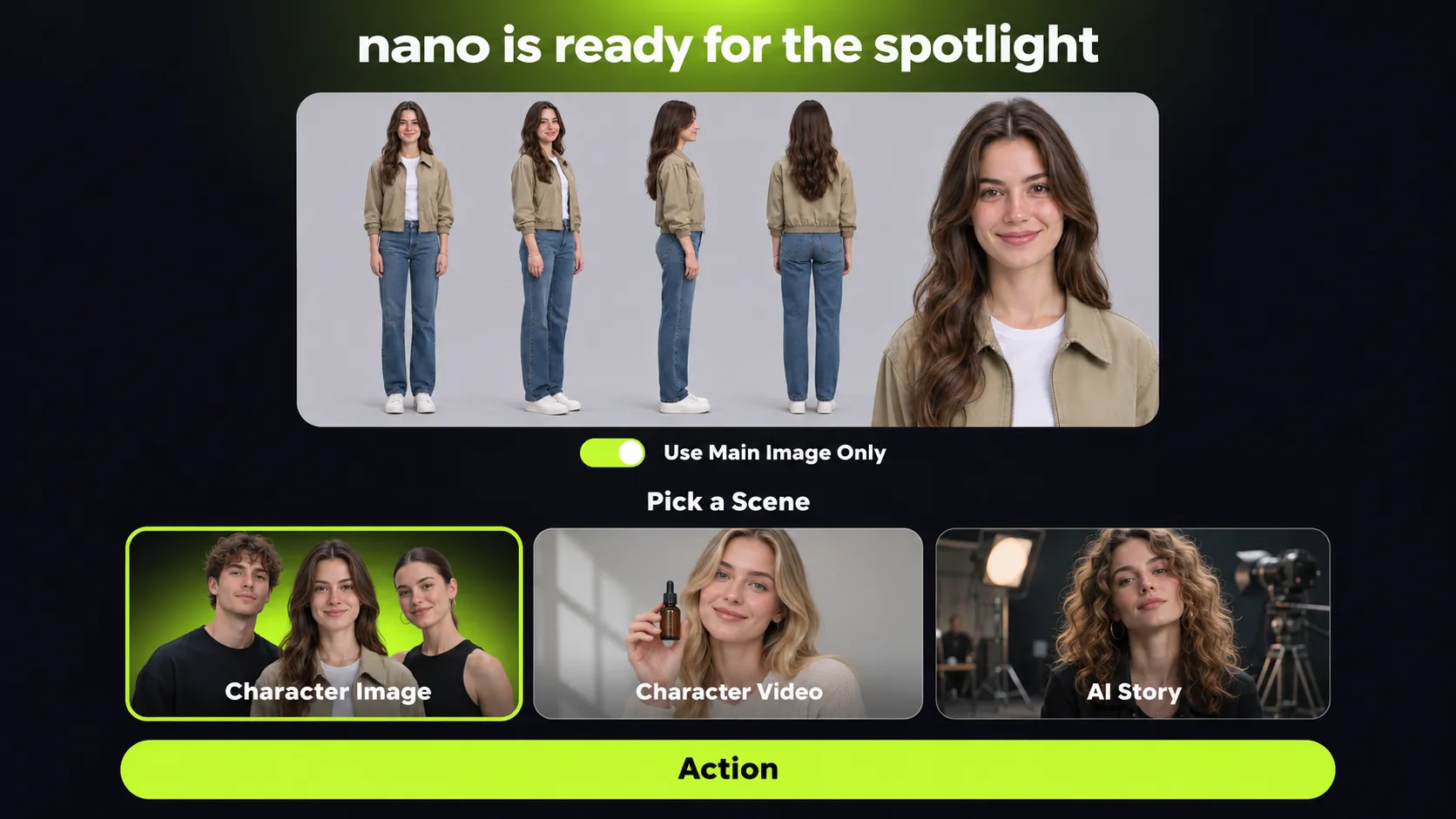


Build Your AI Character Library
Cinematic AI Characters. Limitless Stories
CharactersMy Characters
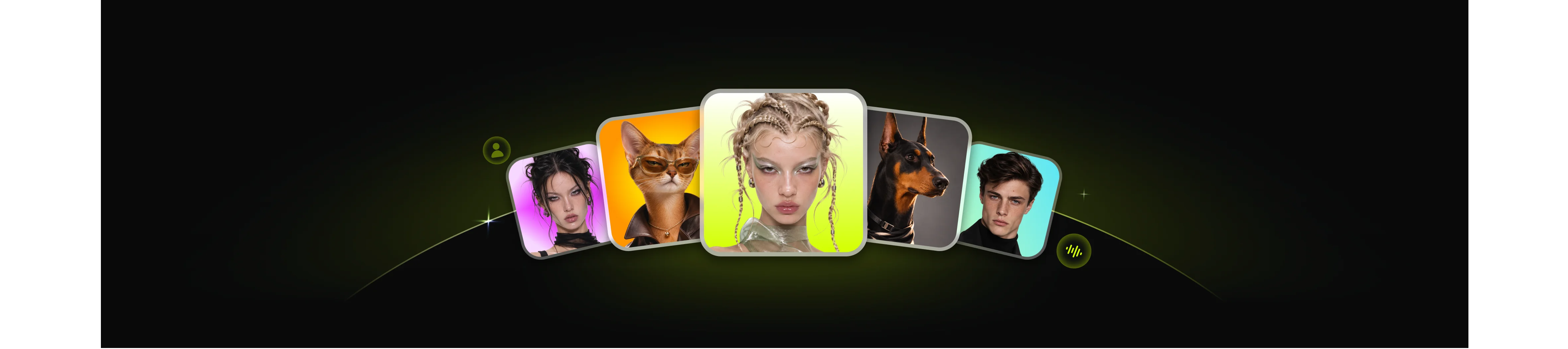
Start with Assets
Create reusable character assets to use across images, videos, and other creative projects. Link a voice reference or create a custom voice to maintain consistent character voices in Reference-to-Video and AI Story.
How To Create Your Ai Character
Create reusable character assets that can be used across images, videos, and a variety of creative projects.Assign or customize a voice for each character to keep their voice consistent across Reference to Video and AI Story Generator.
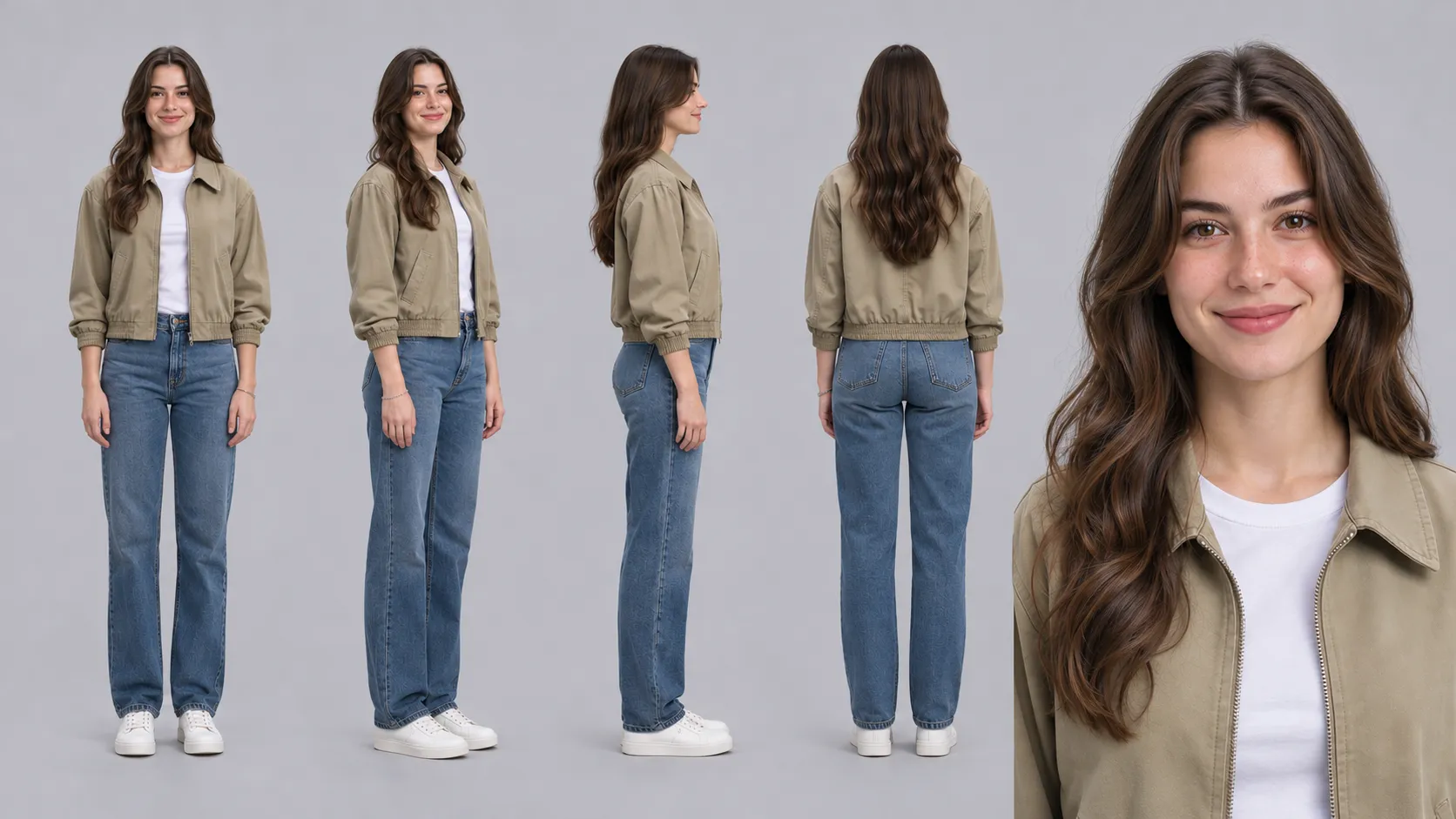
Start at Assets
Two ways to start. One character library.Use an image you already have, or create one from a description. Learn where to begin, what to enter and how to use a saved character.
I Already Have an Image
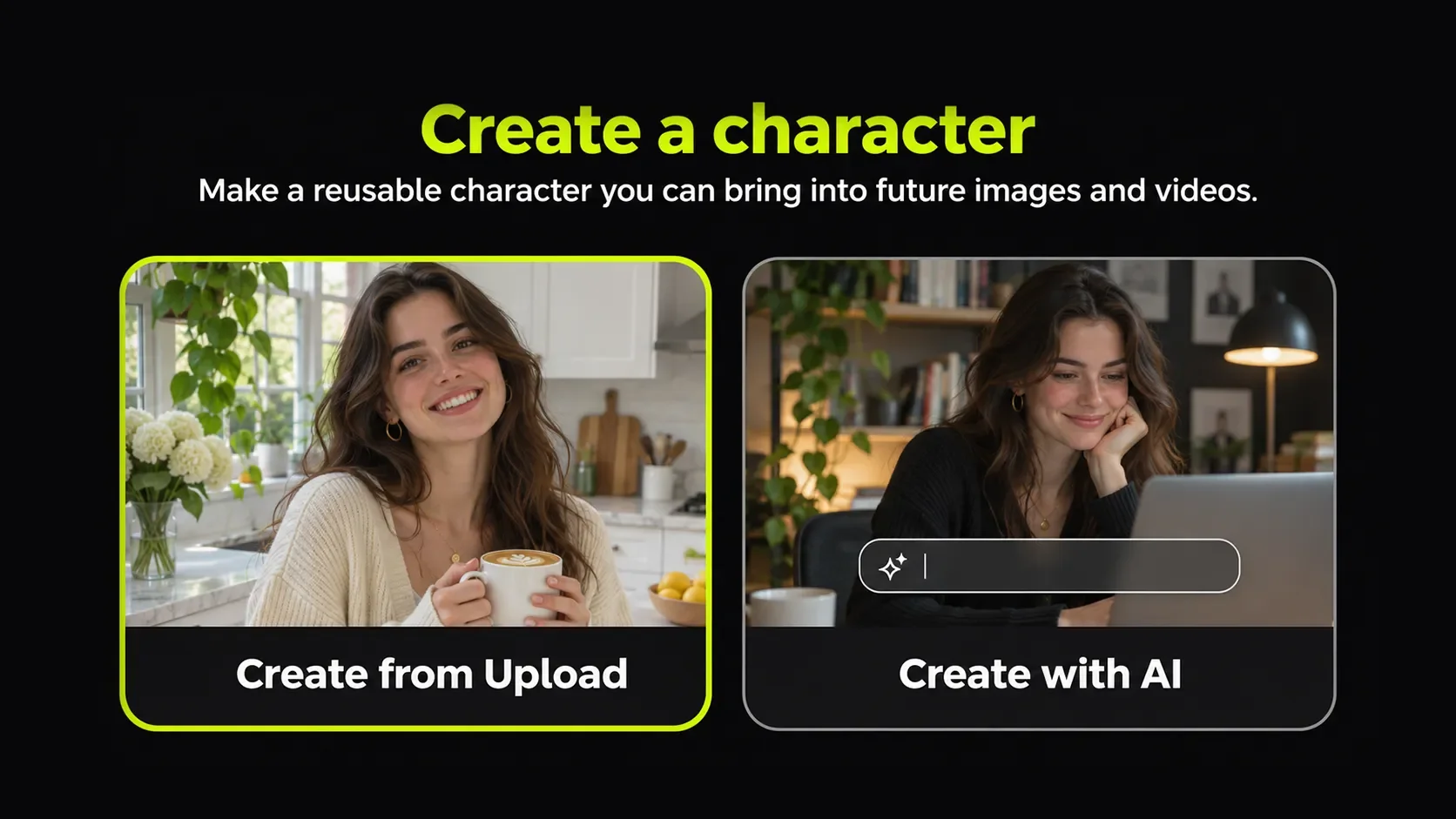
Choose Create from Upload.
From Assets → Create a character, choose Create from Upload. This opens its own Create Character form—not the Reference tab inside AI Character Generator.
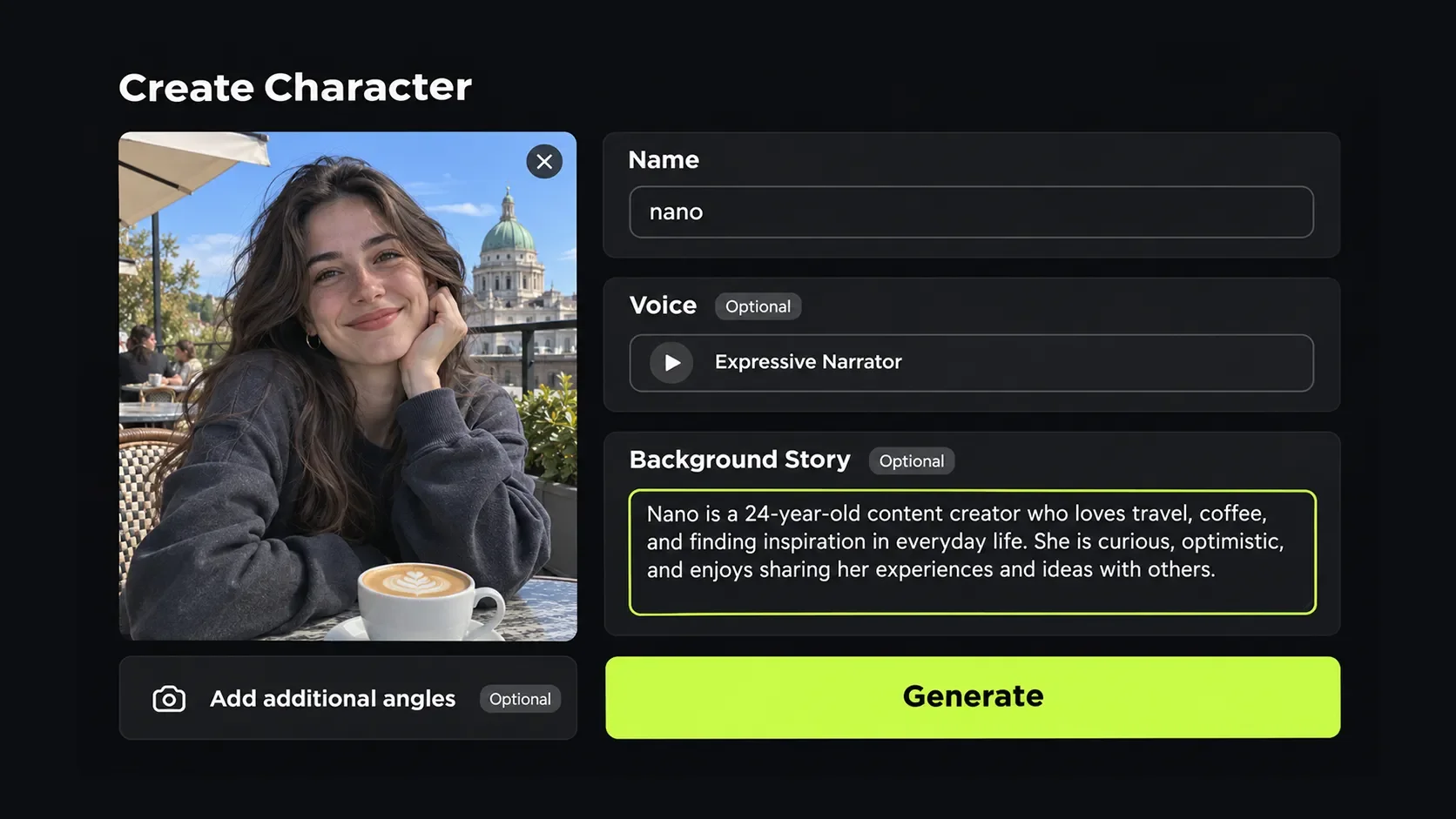
Select one image and enter a name
Click the upload area again to open the file picker. It offered single-file JPG, JPEG or PNG selection. Enter the character name; Voice and Background Story are optional.
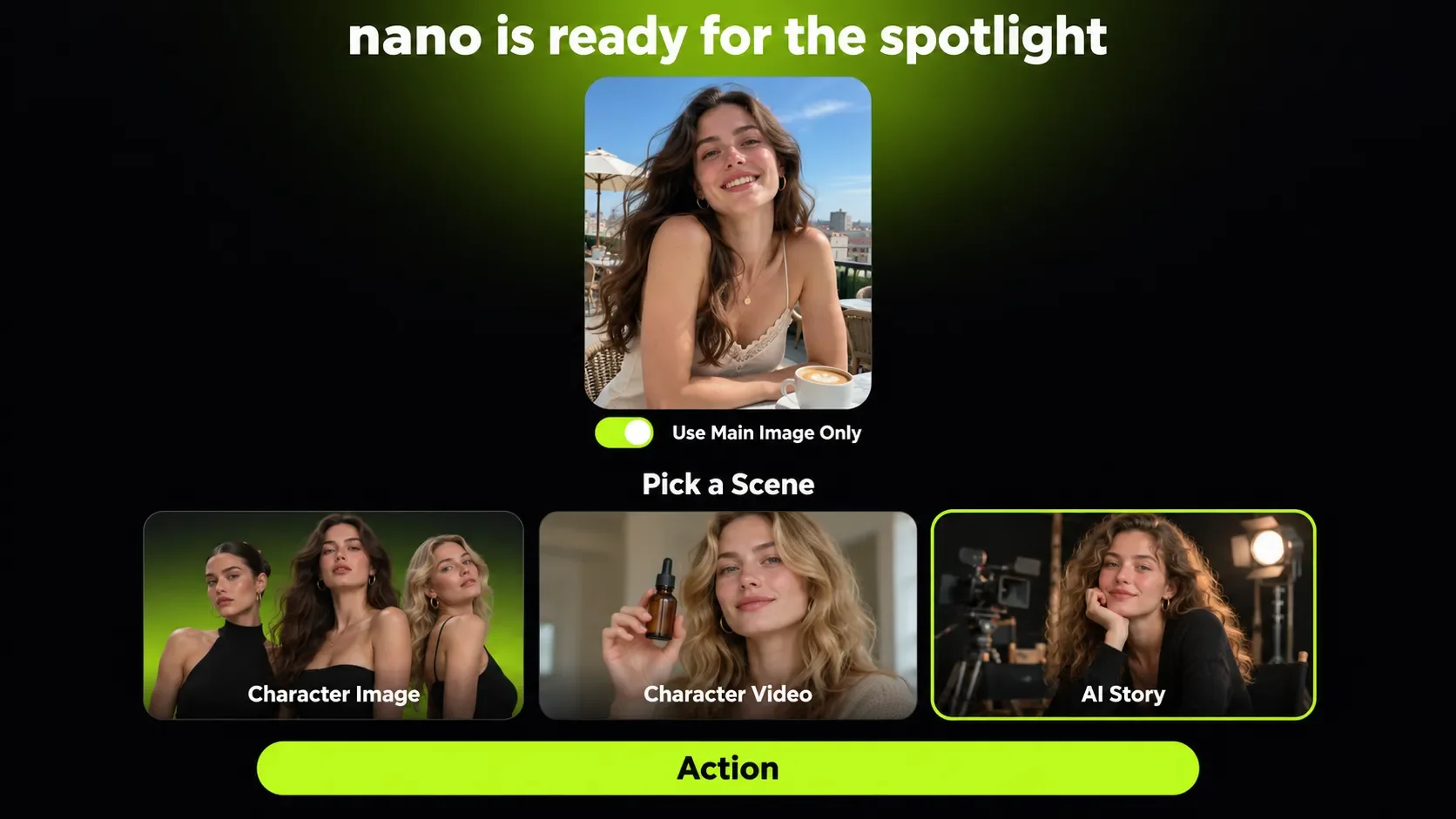
Check the preview before continuing
Before continuing, make sure the selected image actually appears in the form and the Generate button is available. Entering a name alone does not mean a character has been saved.
I want Al to Create One
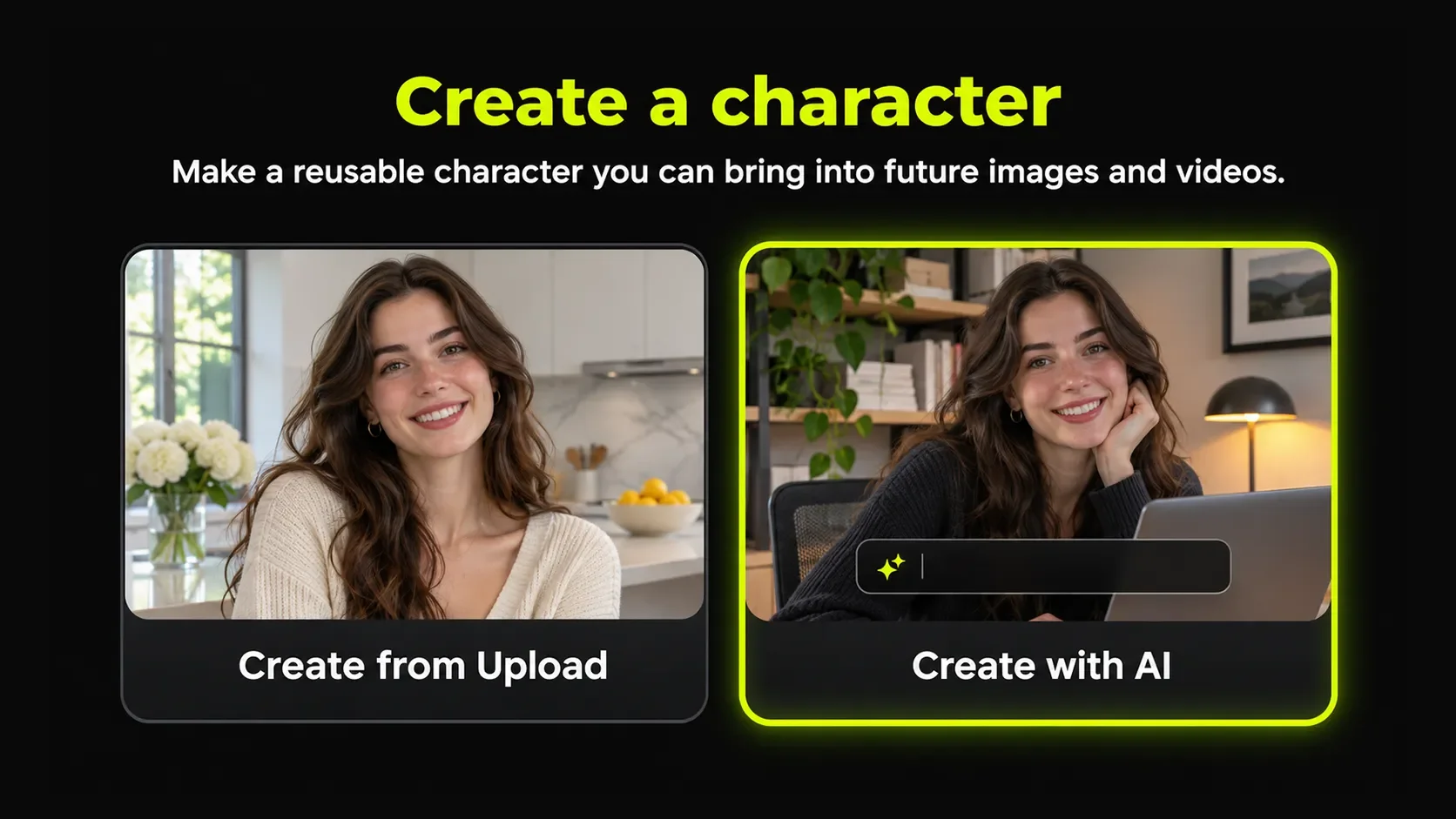
Choose Create with AI
Open your Character Library, click "Create a character", then select "Create with AI".
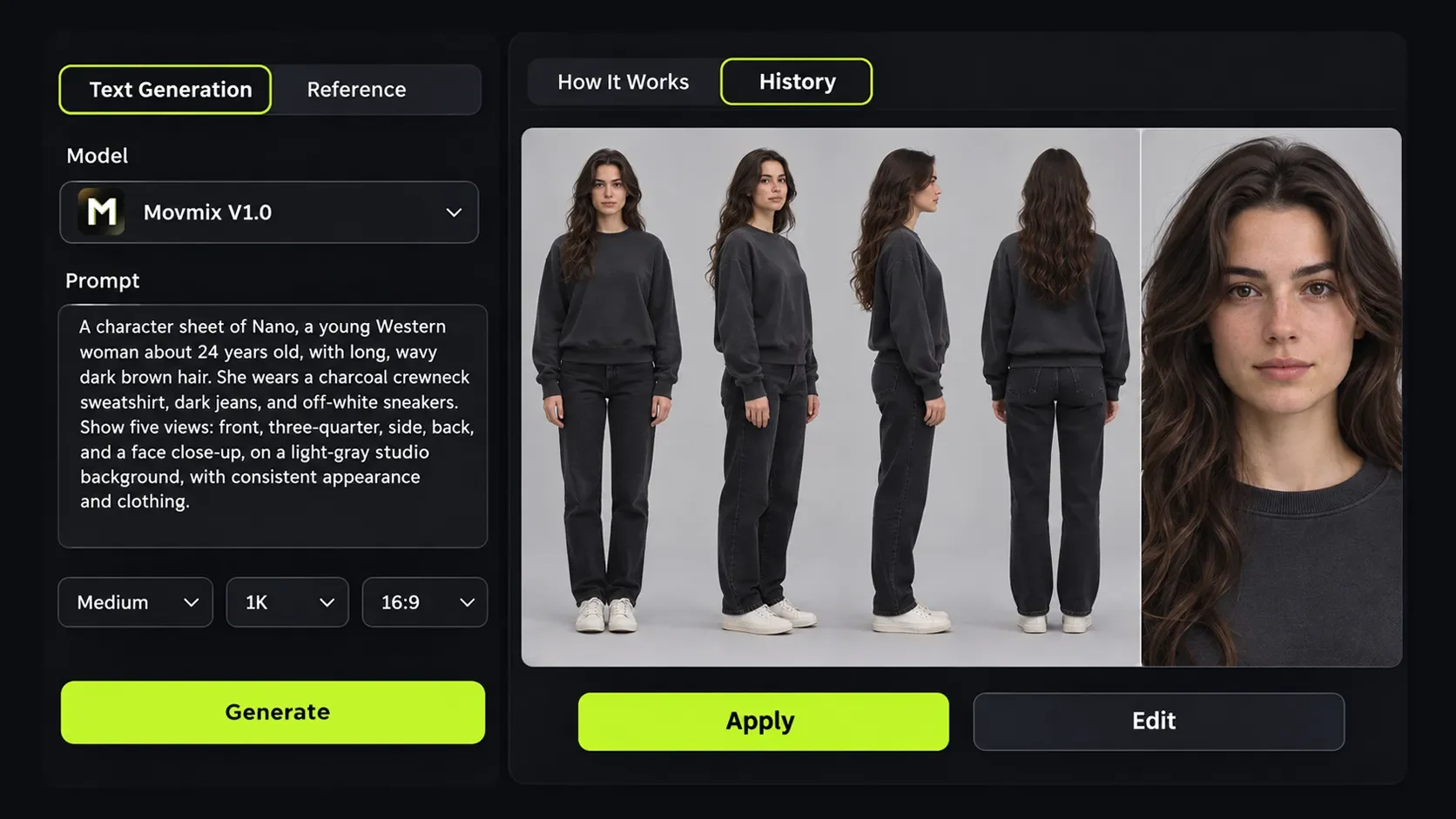
Describe and generate your character
In "Text Generation", describe your character’s appearance, hairstyle, clothing and other details. Choose your model and settings, then click "Generate".
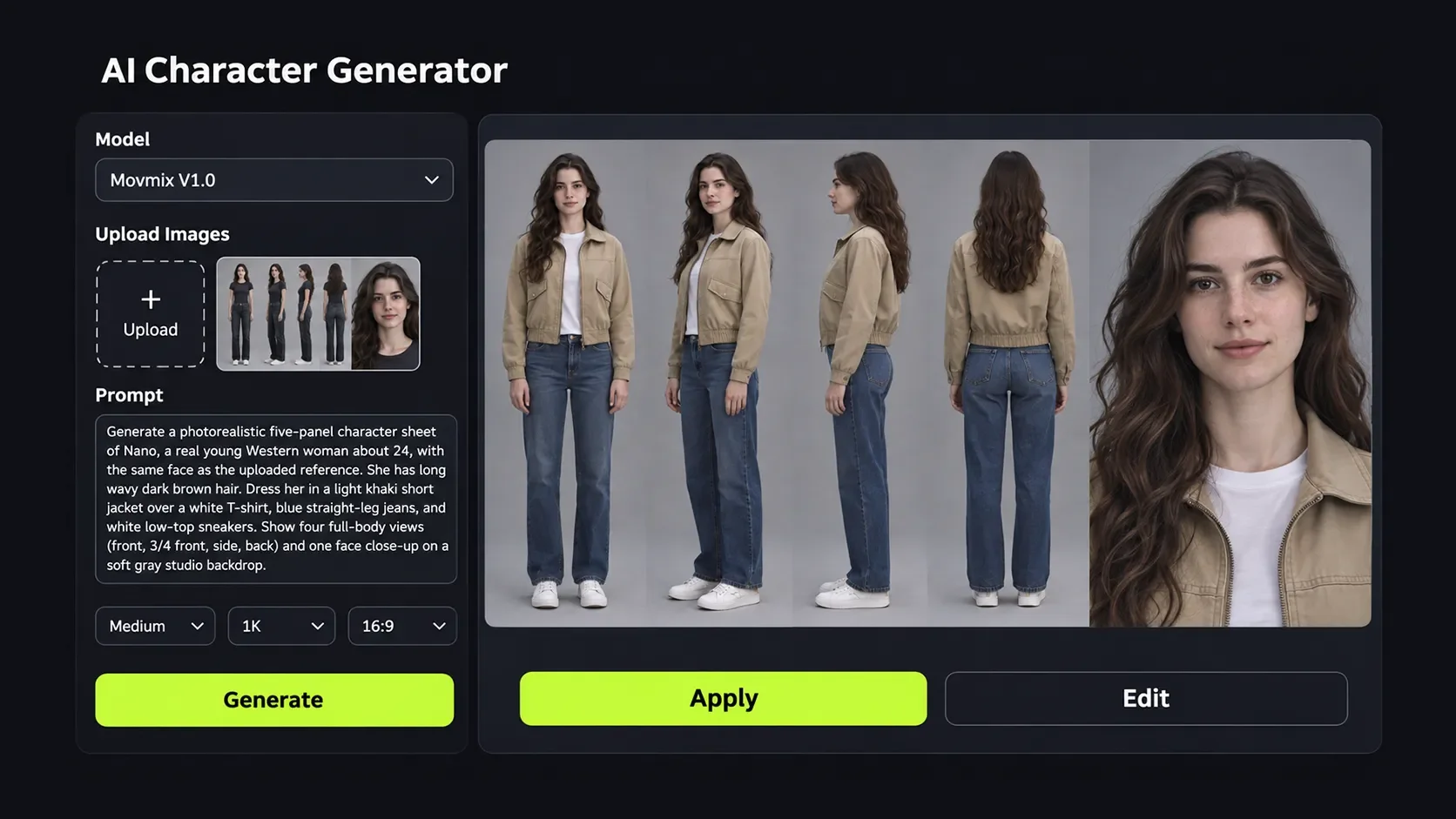
Refine the look with a reference image
Want to change the outfit or adjust a detail? Switch to "Reference", upload the generated character image, and describe what to change—and what to keep. Generate again and review the updated look.
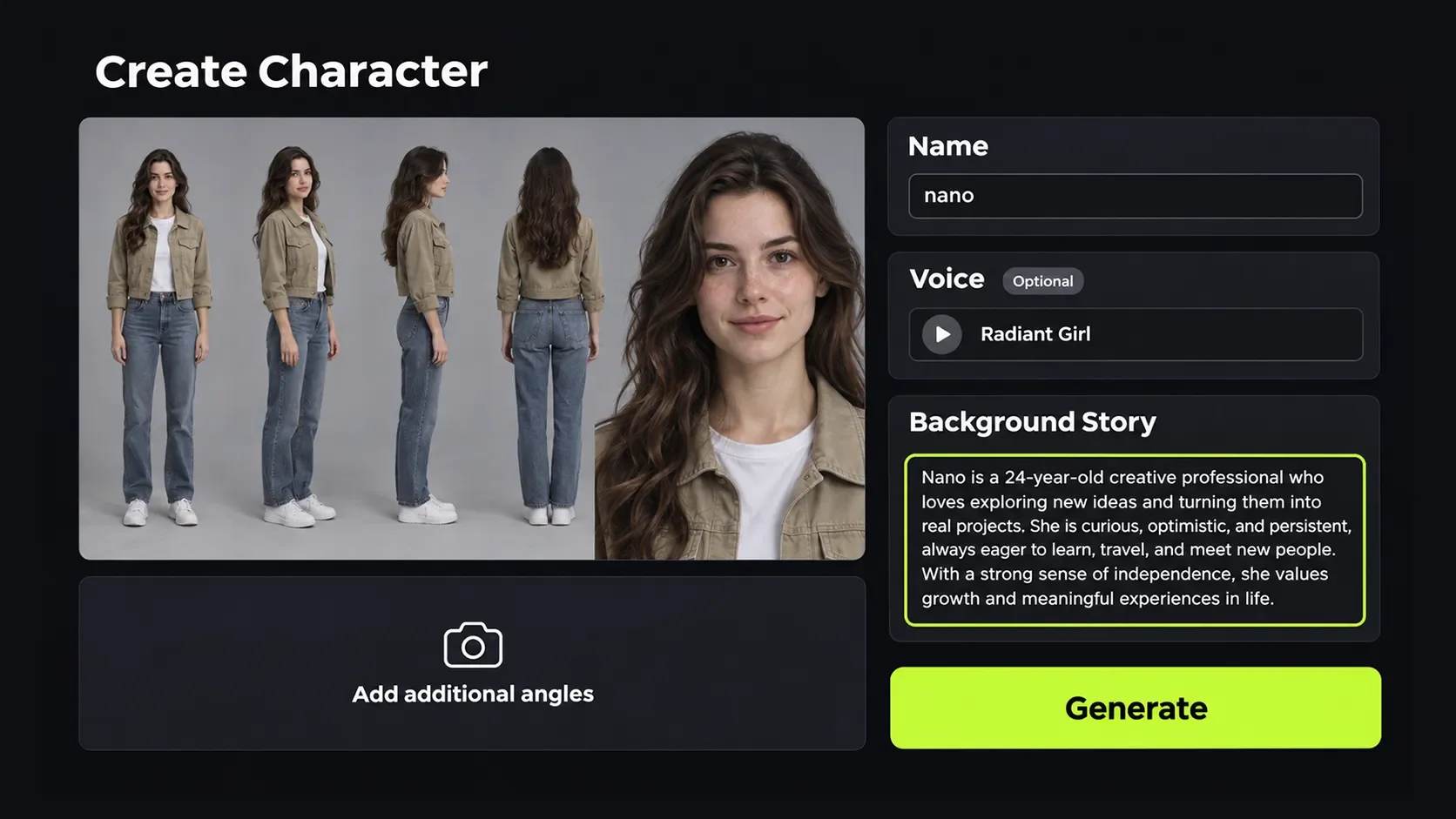
Name your character and complete creation
When you’re happy with the image, click "Apply". Enter a character name, add an optional background story or voice, then click "Generate" to finish creating your reusable character.
Open It In Your Next Creation Tool
Once your character is ready, bring it into your next creation. Use it as a reference in a video tool to bring the image to life, apply it directly in AI Story to build a story around your character, or use it as the main character image for your next project.