

A generated clip often stops before the action is finished. How to extend videos with AI means using that file as the source and continuing from the last frame, instead of generating a new video from scratch.
On Movmix that job sits on Video Extend. You upload the clip, describe only what should happen next, and generate the added seconds. The steps below are how to extend a video and how to tell whether AI video extension joined cleanly.
Extend vs generate again
How to make a video longer can mean two different things.
Extend takes your mp4 and tries to add frames after the last one. Generate again redraws the scene. The second path does not have to keep the same face, light, or room.
Extend AI video only works if the ending you upload is usable. Scrub to the final second. The subject should still be in frame. The location should still be the same shot. A fade to black, or a body already leaving the frame, gives the model little to continue.
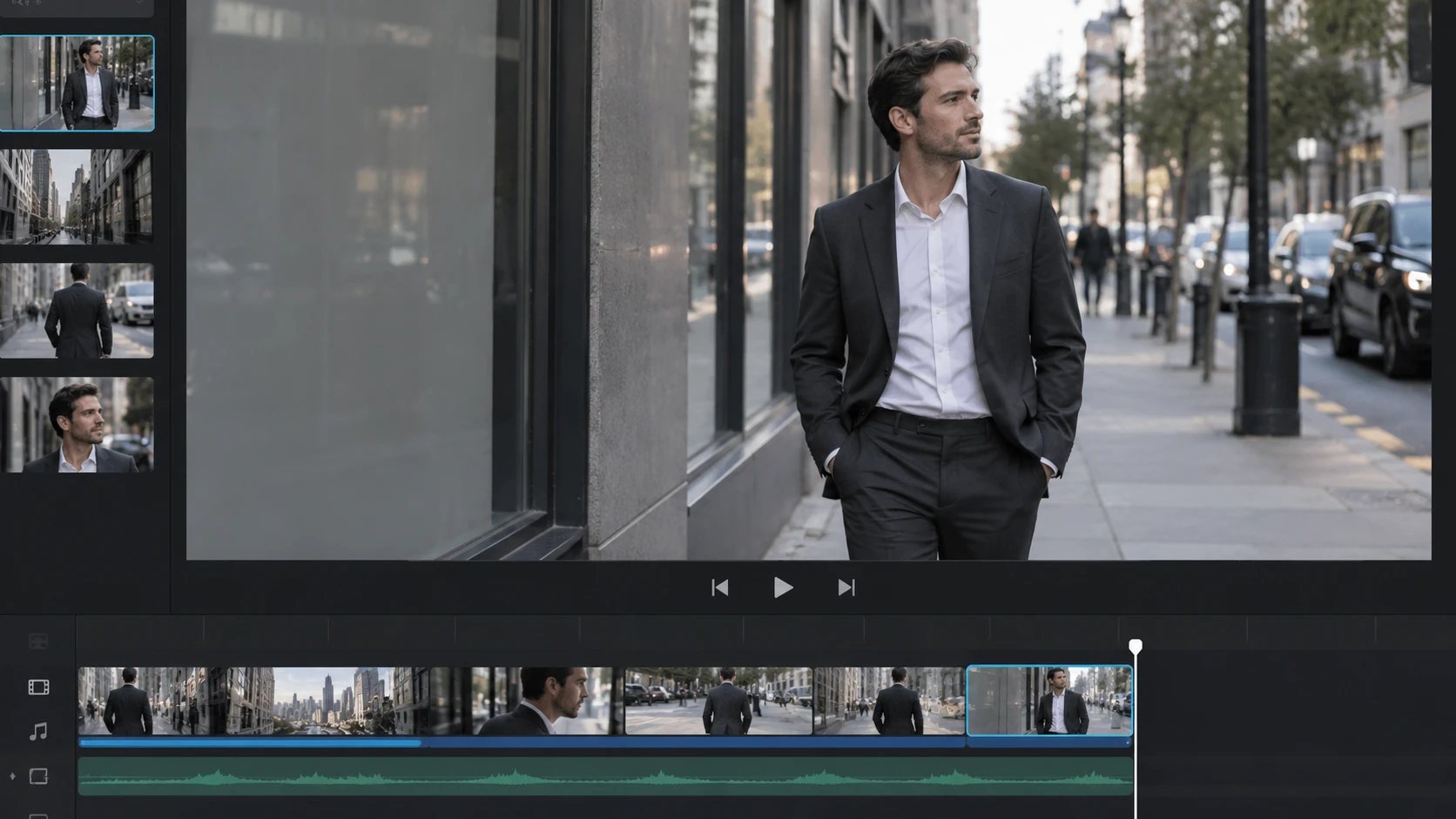
How to extend a video on Movmix
Step 1 — Open Video Extend and upload the source
Go to Video Extend. Video is required. Check the last second before you upload. An extra image is optional. Use it only to keep the same person or the same object. Do not upload a still from a different place.
Step 2 — Write what happens next
The prompt is a continuation, not a synopsis of the source. The model already has the clip.
Say the next action, and say what must stay: the same person, the same room, the same object. If you describe a new location or a second plot beat, AI video extension will treat that as a cut.
Useful constraints, in plain language:
- Name only the next small move (a glance, one step, fabric settling).
- Repeat that the place does not change.
- Keep new people out of the foreground unless they were already in the shot.
- Do not restyle the clip (“make it cinematic,” “change the weather”) in the same line as the continuation.
Step 3 — Keep the first join short
The tool can add a longer tail. The first pass should stay short. Long first joins are where faces slip and rooms jump. If the short join holds, run extend AI video again on that output.
Step 4 — Watch the join, then export
Play from the last second of the source into the new frames. The subject should still match. Motion should keep its direction and speed, not restart. Light and background should not snap to another setup.
If it feels like a hard cut, shorten the next attempt or strip plot out of the prompt. Do not change the source file, the prompt, and the duration in one run — you will not know which change failed.
What usually breaks the extension
The source already ended on a cut or a black frame.
The prompt starts a new scene instead of the next second.
Too many seconds were requested on the first join.
An extra reference image showed a different room.
Fix the ending you upload first. Then fix the sentence. That is most of how to make a video longer with this tool.
How to extend videos with AI is continuation of the same shot. A stable last frame, a prompt that only covers the next seconds, a short first join, then more length if the cut holds.
Run the file on Video Extend.
FAQ
Can I add a long tail in one generate?
You can add more after the first join works. Start short.
Does the prompt need to describe the original clip?
No. Write what happens next, and what must not change.
Is an image required?
No. Video is required.
How is this different from generating a new video?
Extend follows the last frame. A new generate does not have to.
'%3e%3crect%20y='2.1906'%20width='26'%20height='17.4314'%20rx='1.55981'%20fill='white'/%3e%3c/g%3e%3crect%20x='0.311961'%20y='2.50256'%20width='25.3761'%20height='16.8075'%20rx='1.24784'%20stroke='%2322257C'%20stroke-width='0.623922'/%3e%3c/g%3e%3crect%20x='13.078'%20y='15.5656'%20width='10.8016'%20height='2.49569'%20rx='0.623922'%20fill='%2366B3FF'%20stroke='%2322257C'%20stroke-width='0.623922'/%3e%3crect%20x='-0.311961'%20y='0.311961'%20width='10.8016'%20height='2.49569'%20rx='0.623922'%20transform='matrix(-1%200%200%201%2012.61%2015.2536)'%20fill='%2366B3FF'%20stroke='%2322257C'%20stroke-width='0.623922'/%3e%3crect%20x='10.3093'%20y='13.3231'%20width='4.91339'%20height='6.98013'%20rx='2.45669'%20fill='%2322257C'/%3e%3cpath%20d='M18.9174%200.31543C20.5962%200.268025%2022.1261%200.655527%2023.9487%201.55762C24.0483%201.60695%2024.1137%201.71153%2024.1137%201.8291V16.502C24.1137%2016.7236%2023.8763%2016.891%2023.6499%2016.7979C21.803%2016.0377%2020.2158%2015.6963%2018.4975%2015.7705C16.8915%2015.8399%2015.1907%2016.2732%2013.0776%2017.0332V1.6709C15.4678%200.825877%2017.2746%200.36187%2018.9174%200.31543Z'%20fill='white'%20stroke='%2322257C'%20stroke-width='0.623922'/%3e%3cpath%20d='M15.3008%204.57C16.3536%203.94578%2019.2783%203.20503%2021.8909%203.94608'%20stroke='%2366B3FF'%20stroke-width='0.935883'%20stroke-linecap='round'/%3e%3cpath%20d='M15.3008%207.26054C16.3536%206.63631%2019.2783%205.89557%2021.8909%206.63661'%20stroke='%2366B3FF'%20stroke-width='0.935883'%20stroke-linecap='round'/%3e%3cpath%20d='M15.3008%209.95107C16.3536%209.32684%2019.2783%208.5861%2021.8909%209.32714'%20stroke='%2366B3FF'%20stroke-width='0.935883'%20stroke-linecap='round'/%3e%3cpath%20d='M15.3008%2012.6398C16.3536%2012.0156%2019.2783%2011.2749%2021.8909%2012.0159'%20stroke='%2366B3FF'%20stroke-width='0.935883'%20stroke-linecap='round'/%3e%3cpath%20d='M7.08257%200.31543C5.40384%200.268025%203.87393%200.655527%202.05132%201.55762C1.95165%201.60695%201.88628%201.71153%201.88628%201.8291V16.502C1.88628%2016.7236%202.12373%2016.891%202.35014%2016.7979C4.19702%2016.0377%205.78418%2015.6963%207.50249%2015.7705C9.10852%2015.8399%2010.8093%2016.2732%2012.9224%2017.0332V1.6709C10.5322%200.825877%208.72541%200.36187%207.08257%200.31543Z'%20fill='white'%20stroke='%2322257C'%20stroke-width='0.623922'/%3e%3cpath%20d='M10.6992%204.57C9.64638%203.94578%206.72175%203.20503%204.10907%203.94608'%20stroke='%2366B3FF'%20stroke-width='0.935883'%20stroke-linecap='round'/%3e%3cpath%20d='M10.6992%207.26054C9.64638%206.63631%206.72175%205.89557%204.10907%206.63661'%20stroke='%2366B3FF'%20stroke-width='0.935883'%20stroke-linecap='round'/%3e%3cpath%20d='M10.6992%209.95107C9.64638%209.32684%206.72175%208.5861%204.10907%209.32714'%20stroke='%2366B3FF'%20stroke-width='0.935883'%20stroke-linecap='round'/%3e%3cpath%20d='M10.6992%2012.6398C9.64638%2012.0156%206.72175%2011.2749%204.10907%2012.0159'%20stroke='%2366B3FF'%20stroke-width='0.935883'%20stroke-linecap='round'/%3e%3c/g%3e%3cdefs%3e%3cfilter%20x='0'%20y='2.1906'%20width='26'%20height='17.4314'%20filterUnits='userSpaceOnUse'%20color-interpolation-filters='sRGB'%3e%3cfeFlood%20flood-opacity='0'%20result='BackgroundImageFix'/%3e%3cfeBlend%20mode='normal'%20in='SourceGraphic'%20in2='BackgroundImageFix'%20result='shape'/%3e%3cfeColorMatrix%20in='SourceAlpha'%20type='matrix'%20values='0%200%200%200%200%200%200%200%200%200%200%200%200%200%200%200%200%200%20127%200'%20result='hardAlpha'/%3e%3cfeOffset%20dy='-1.24784'/%3e%3cfeComposite%20in2='hardAlpha'%20operator='arithmetic'%20k2='-1'%20k3='1'/%3e%3cfeColorMatrix%20type='matrix'%20values='0%200%200%200%200.572549%200%200%200%200%200.768627%200%200%200%200%200.976471%200%200%200%201%200'/%3e%3cfeBlend%20mode='normal'%20in2='shape'%20result='effect1_innerShadow_0_4'/%3e%3c/filter%3e%3c/defs%3e%3c/svg%3e)