You've finally generated an AI video you're happy with.
The subject looks great. The environment feels right. The movement is smooth.
There's just one problem: the video ends too soon.
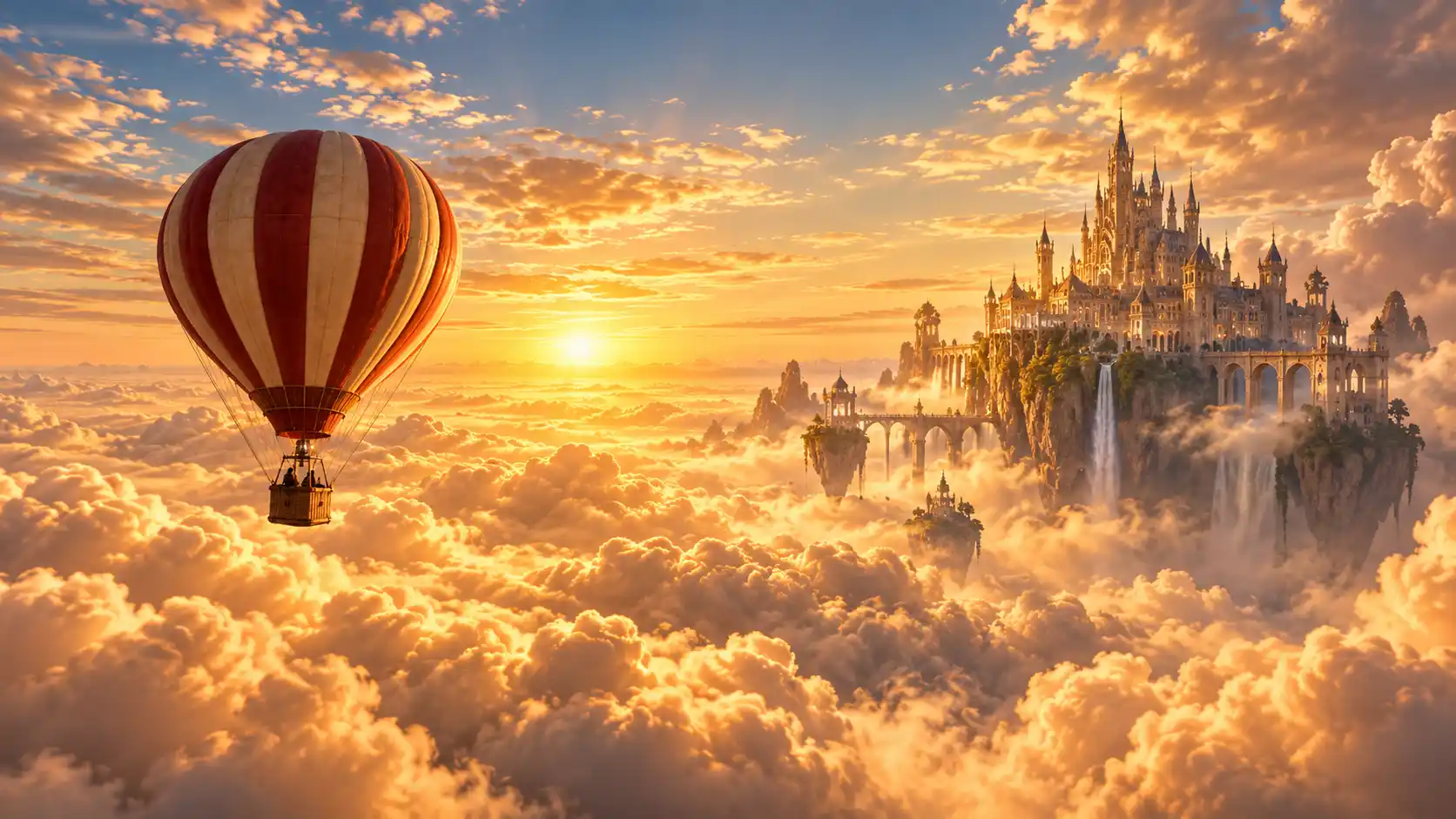
Imagine a hot air balloon floating above a magnificent sea of clouds. You want it to continue traveling until a mysterious castle gradually appears in the distance. But your generated clip stops before the story gets there.
Does that mean you need to generate the entire video again?
Not necessarily.
With Movmix AI Video Extender, you can upload your existing footage and use a prompt to describe what should happen next.
Here, an AI video extender means a tool that continues the video beyond its original ending. It is not a tool for changing a video's aspect ratio or expanding its horizontal dimensions.
In this tutorial, we'll use one cinematic fantasy example to demonstrate how to prepare your original footage, write a useful extension prompt, and make the newly generated content feel like a natural continuation of the existing scene.
1. What Is an AI Video Extender?
An AI Video Extender is a video-generation tool designed to continue an existing clip by creating additional footage.
It doesn't simply slow down the original video or loop its final few seconds.
Instead, it uses the existing subject, environment, and movement as references to generate what happens next.
Here are a few examples:
| Original Video | Possible Extended Content |
|---|---|
| A hot air balloon traveling above the clouds | It continues flying as a distant castle gradually appears |
| A paper airplane gliding through a bright classroom | It continues toward a nearby window |
| A train traveling through snowy mountains | It continues into a wider mountain valley |
| A bright shooting star crossing the night sky | It travels farther before gradually fading away |
These scenes have something in common: the original video contains an action or story that can naturally continue.
A successful extension should feel like the next moment of the same video, rather than an unrelated clip suddenly appearing afterward.
2. AI Video Extension vs. AI Video Editing
These two workflows are easy to confuse, but they serve different purposes.
| Feature | AI Video Extension | AI Video Editing |
|---|---|---|
| Main Purpose | Generate additional footage after an existing clip | Modify the content of an existing video |
| Core Operation | Continue from the original video's ending | Change selected visual elements through a prompt |
| Typical Tasks | Extend an action or continue a story | Change backgrounds, appearances, or artistic styles |
| Main Focus | What should happen next? | What should change, and what should remain? |
For example, imagine a hot air balloon flying through golden clouds.
If you want it to continue flying until a distant castle appears, that's a task for Video Extension.
If you want to transform the original golden cloud scene into a hand-painted watercolor animation, that's a different creative task. You can explore that direction with Movmix AI Video Editor.
The two approaches can be useful at different stages of a project, but extending a video's duration and changing its visual style are not the same operation.
3. Practical Example: Extend a Cinematic Hot Air Balloon Video
For this tutorial, we'll create a simple fantasy scene with strong visual appeal.
The story:
A deep-red hot air balloon travels slowly above a golden sea of clouds.
After the original video ends, the balloon continues in the same direction. As the distant clouds gradually part, a magnificent floating castle begins to appear.
We'll divide the demonstration into two stages.
| Stage | Scene | Planned Duration |
|---|---|---|
| Original Video | Hot air balloon traveling above golden clouds | 6 seconds |
| Extended Video | The balloon continues forward as a distant castle appears | Approximately 6 additional seconds |
If the selected model supports the required extension duration, the combined demonstration will be approximately 12 seconds long. Actual duration settings and output formats depend on the model.
Our main objective isn't simply to generate a beautiful castle.
It's to make that castle appear naturally as the existing video continues.
Step 1: Prepare the Original Video's First Frame
Let's begin by creating a reference image of the hot air balloon.
There's one important detail: the floating castle should not appear in the original first frame.
The castle is part of the new content we want to introduce during the extension.
| Reference Image Prompt: | Output |
|---|---|
| 16:9 horizontal epic fantasy cinematic scene. A vintage hot air balloon with alternating deep-red and cream-white panels floats above an expansive golden sea of clouds. An intricately woven brown wicker basket hangs beneath the balloon. The camera captures the balloon from a slightly elevated rear three-quarter angle. Position the balloon slightly left of center, with bright clouds extending into the distance ahead. Leave generous open sky and cloud space on the right side and in the far background. Warm sunset light illuminates the clouds from above, while the sky displays a gentle gradient of gold and pale blue. No castle, buildings, or other major objects appear in the distance. Epic sense of scale, realistic cinematic photography, detailed cloud textures, clean and natural composition, no text, no logo, no watermark. | 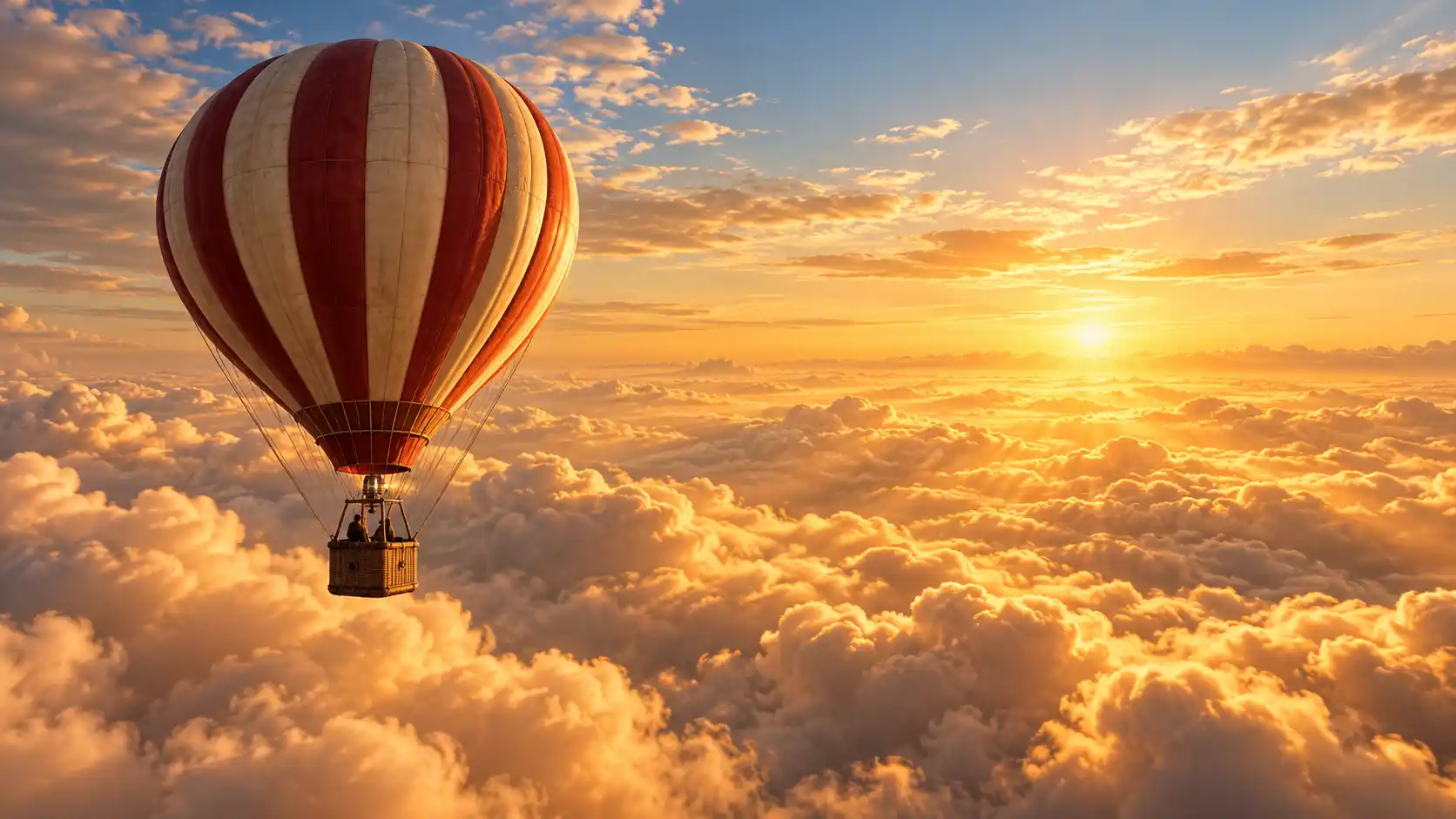 |
Step 2: Generate the Original 6-Second Video
The original video only needs to establish one action:
The hot air balloon continues flying in a clear direction.
There's no need to introduce the castle, lightning, or additional dramatic effects yet.
Original Video Prompt:
6-second epic fantasy cinematic shot. The deep-red and cream-white hot air balloon travels slowly forward above a golden sea of clouds. The wicker basket shows extremely subtle natural movement in the airflow. The camera follows smoothly from a rear three-quarter angle, maintaining a relatively consistent distance from the balloon. The surrounding clouds drift gently, while warm sunset light illuminates the balloon and the cloudscape. Preserve the balloon's original colors, shape, basket structure, and movement direction. Maintain smooth and continuous camera motion. At the end of the video, the balloon is still traveling forward into an open sea of clouds. Do not make it stop suddenly, change direction, or transition to another scene.
The most important instruction is the final sentence.
The balloon must still be traveling forward when the original video ends.
This gives the extension a clear starting direction.
If your original clip already ends with a fade to black, a completed transition, or the subject leaving the frame entirely, it may not be suitable for continuing this particular story without further adjustment.
Step 3: Check the Original Video's Ending
Don't rush to extend your clip immediately after generating it.
Watch the final second first.
Check these four details:
| What to Check | Ideal Ending State |
|---|---|
| Hot Air Balloon | Still fully visible in the frame |
| Movement Direction | Continuing along its original path |
| Camera | No sudden change in viewing angle |
| Environment Ahead | Enough open cloudscape for the story to continue |
If the balloon suddenly changes shape or the camera makes an unexpected jump during the final second, consider correcting the original clip first.
A video extension needs a clear ending state. The more coherent that ending is, the easier it becomes to describe what should happen next.
Step 4: Upload the Original Clip and Write the Extension Prompt
Now open Movmix Video Extend.
Upload the original video, choose a model that supports your intended extension, and enter the prompt.
The most important technique here is simple:
Don't describe the original story all over again. Describe what should happen immediately after the uploaded video ends.
Extension Prompt:
Continue naturally from the final moment of the uploaded video. Preserve the original hot air balloon's deep-red and cream-white appearance, brown wicker basket, flight direction, and movement speed. The balloon continues traveling slowly forward above the golden sea of clouds. Maintain the original rear three-quarter camera angle and follow the balloon at a stable distance without suddenly cutting to another shot. As the balloon moves forward, distant clouds gradually part to reveal a magnificent floating castle emerging slowly from the mist. The castle remains far away, resting on an enormous suspended rock formation with intricate classical stone towers. The castle becomes visible progressively in the distance. It must not suddenly appear beside the balloon, move rapidly, or change size unnaturally. Preserve the original golden sunset, cloud colors, cinematic photography style, and spatial relationships. Keep the balloon flying naturally so the newly generated footage feels like a direct continuation of the original story.
Step 5: Review the Extended Result
Once the extension is generated, don't evaluate it only by how beautiful the castle looks.
You also need to check whether the newly generated footage connects naturally with the final moment of the original clip.
Pay particular attention to these details:
- Does the balloon suddenly change color or shape?
- Does the camera preserve its original viewing direction?
- Do the cloud colors and lighting remain consistent?
- Does the castle gradually emerge in the distance instead of suddenly appearing in the middle of the frame?
- Does the new footage actually move the story forward?
For the published tutorial, I recommend displaying three pieces of footage:
Original Video → Extended Video → Complete Result
If the tool outputs a separate continuation clip, combine it with the original footage during editing. If it returns a complete video containing both the original and generated sections, review the combined result and its final duration.
4. How to Write a Better AI Video Extension Prompt
Many people try video extension for the first time with a prompt like:
"Continue this video."
But that doesn't explain what should continue or what should happen next.
For AI video extension, I recommend organizing your prompt into four components.
| Prompt Component | What to Describe |
|---|---|
| Original State | Which subject and existing movement must remain? |
| Next Action | What happens after the original video ends? |
| Camera Continuity | How should the camera angle, speed, and framing continue? |
| Scene Development | What new elements should appear, and what must stay unchanged? |
Here's a reusable template.
AI Video Extension Prompt Template:
Continue naturally from the final moment of the uploaded video. Preserve the original [main subject, appearance, and current movement state].
Next, [describe how the subject continues moving and what new event should happen].
Maintain the original camera's [viewing angle, movement direction, and shooting rhythm], ensuring a smooth visual continuation.
Preserve the original [important environment details, lighting, key objects, and overall visual style].
Any new [character, object, or environmental change] should appear gradually through a logical sequence of time and space. Avoid sudden visual jumps or unnecessary changes to the original scene structure.
You can adapt this structure to different extension tasks.
For our hot air balloon example, the creative direction is:
Preserve: Balloon appearance, flight direction, golden cloudscape.
Continue: The balloon travels forward.
Introduce: The clouds part, revealing a floating castle.
Avoid: Sudden scene changes, subject redesign, or unexpected camera movement.
5. What Makes a Good Original Video for Extension?
Not every short clip is equally suitable for continuation.
When preparing source footage, look for videos that end with a clear ongoing action or a story that hasn't reached its conclusion.
Here are a few possibilities:
| Suitable Original Video | Possible Continuation |
|---|---|
| A hot air balloon in flight | Continue traveling toward a distant destination |
| A camera moving along a forest path | Continue forward to reveal a new landscape |
| A train traveling through a valley | Continue into a wider mountain view |
| Clouds drifting across the sky | Gradually change the lighting and reveal distant scenery |
On the other hand, a video that already ends with a final pose, closing titles, or a fade to black may need additional preparation before it can be extended naturally.
You might need to choose a more suitable ending point or adjust the original clip.
Before extending a video, decide exactly where the story should continue.
6. Common AI Video Extension Problems and How to Fix Them
Problem 1: The Main Subject Changes Appearance
For example, your original balloon is deep red and cream white, but the extended footage introduces a completely different design.
Reinforce the subject's important visual features in your extension prompt.
Corrective Prompt:
Strictly preserve the original hot air balloon's deep-red and cream-white appearance, envelope shape, brown wicker basket, and original proportions. The extended footage must feature the same balloon throughout. Do not change its colors, structure, or decorative details. Only continue the original flight movement.
Problem 2: The New Scene Appears Too Suddenly
Perhaps the original footage shows an ordinary cloudscape, but the castle suddenly fills the entire frame in the next moment.
This usually means the new scene's introduction hasn't been described clearly enough.
Corrective Prompt:
The new floating castle must gradually emerge in the distance. First, let the distant clouds slowly part. Then progressively reveal the castle's silhouette through the mist. Keep the castle in the background throughout its appearance. Do not make it suddenly appear in the center of the frame, enlarge rapidly, or change the original spatial relationship between the clouds and sky.
Problem 3: The Camera Changes Direction
The original footage uses a rear three-quarter tracking angle, but the extension suddenly switches to a frontal shot.
Corrective Prompt:
Strictly maintain the camera position, viewing angle, and movement direction established at the end of the original video. Continue following the hot air balloon smoothly from a rear three-quarter angle. Do not suddenly switch to a frontal view, rotate, zoom in rapidly, or pull back. Preserve the original camera rhythm.
Problem 4: The Lighting Changes Between the Original and Extended Footage
Your original video shows a warm golden sunset, but the continuation suddenly becomes a cool nighttime scene.
That creates an obvious visual break.
Corrective Prompt:
Preserve the original golden sunset, pale-blue sky, warm cloudscape, and lighting direction. The extended footage takes place at the same time and in the same environment as the original video. All newly introduced objects must follow the same lighting and color atmosphere. Do not suddenly change the weather or time of day.
Problem 5: AI Repeats the Original Video Without Developing the Story
If your prompt only asks the model to continue the same movement, the output may lack meaningful progression.
A better approach is to introduce one clear, simple new event.
For example:
"The balloon continues flying as the distant clouds gradually part, revealing a floating castle."
You don't need several dramatic events happening simultaneously.
Start with one meaningful development per extension.
7. AI Video Extension vs. AI Video Continuity
We've previously covered how to connect separate AI-generated shots.
However, AI Video Extender addresses a different problem.
| Comparison | AI Video Extension | AI Video Continuity |
|---|---|---|
| Main Goal | Generate additional footage after an existing clip | Make separate shots connect naturally |
| Starting Material | One video that needs continuation | Multiple independent clips or storyboard shots |
| Main Focus | What happens after the video ends? | Does one shot connect logically to the next? |
| Typical Workflow | Upload original footage and describe the continuation | Plan shot states and visual references |
| Common Situation | A clip is too short to complete its story | Separately generated clips feel disconnected |
For example, if you've already generated the first part of the hot air balloon story and simply need it to continue, that's an AI video extension task.
But if you've independently generated three shots—a balloon, a floating castle, and a character entering the castle—your main challenge becomes maintaining continuity between those clips.
The two approaches can work together, but they are not interchangeable.
8. AI Video Extension Checklist
Before generating your extension, review these details.
| Check | Question to Ask |
|---|---|
| Original Video | Does the original clip end clearly and naturally? |
| Subject | Which subject must remain unchanged? |
| Starting Motion | What is the subject doing in the final moment? |
| Camera | Which viewing angle should the new footage continue? |
| Environment | What lighting, weather, and scene details must remain? |
| Next Event | What is the most important development in the continuation? |
| Prompt | Have you clearly separated what to preserve from what to introduce? |
You don't need to include every creative idea in a single extension.
Make the video continue naturally first. Then gradually develop the rest of the story.
FAQ: AI Video Extender
Does AI Video Extender Turn Vertical Videos Into Horizontal Videos?
No. The Video Extend workflow discussed in this guide is designed to continue an existing video and generate additional footage.
Changing aspect ratios or expanding the visible background is a different editing task.
Do I Need to Generate a New First Frame Before Extending a Video?
Usually, you can upload an existing video as the starting point. Depending on the selected model, additional image-reference options may also be available. Check the current interface for the supported input workflow.
Can I Extend a Video That's Only a Few Seconds Long?
You can try uploading a short clip that meets the selected model's requirements. Supported input durations, extension lengths, and final output formats depend on the model.
Will the Extended Video Preserve the Original Character or Object Exactly?
You can explicitly instruct the model to preserve important appearance details, but identical frame-by-frame reproduction isn't guaranteed. Pay particular attention to the transition between the original and newly generated footage.
Can I Extend the Same Video Multiple Times?
You may be able to continue extending a video in stages, depending on the tool's supported input and output workflow.
However, repeated generations can introduce cumulative changes in appearance or movement. Review each result before extending it again.
How Can I Make the Extended Footage Connect More Naturally?
Start from the original video's final state. Clearly identify the subject, movement direction, camera angle, and environment that need to continue.
Then describe the next event in a logical sequence rather than introducing an unrelated scene.
Final Thoughts: Continue the Video, Don't Start Over
Sometimes, AI generates a video that already looks exactly how you imagined.
The only issue is that it ends before the story is finished.
Instead of rebuilding the entire clip, an AI video extender gives you another option: continue from what you've already created.
In our hot air balloon example, we only needed to do three things:
Preserve the original balloon and its flight direction.
Maintain the existing camera movement.
Gradually part the clouds to introduce a distant floating castle.
There was no need for an abrupt scene change or a completely redesigned subject.
The most important part was making the newly generated content continue naturally from the original video's final moment.
If you have a short clip you'd like to continue, open Movmix AI Video Extender, upload your footage, and describe how the story should develop next.
Don't restart a good video. Let the story continue.
'%3e%3crect%20y='2.1906'%20width='26'%20height='17.4314'%20rx='1.55981'%20fill='white'/%3e%3c/g%3e%3crect%20x='0.311961'%20y='2.50256'%20width='25.3761'%20height='16.8075'%20rx='1.24784'%20stroke='%2322257C'%20stroke-width='0.623922'/%3e%3c/g%3e%3crect%20x='13.078'%20y='15.5656'%20width='10.8016'%20height='2.49569'%20rx='0.623922'%20fill='%2366B3FF'%20stroke='%2322257C'%20stroke-width='0.623922'/%3e%3crect%20x='-0.311961'%20y='0.311961'%20width='10.8016'%20height='2.49569'%20rx='0.623922'%20transform='matrix(-1%200%200%201%2012.61%2015.2536)'%20fill='%2366B3FF'%20stroke='%2322257C'%20stroke-width='0.623922'/%3e%3crect%20x='10.3093'%20y='13.3231'%20width='4.91339'%20height='6.98013'%20rx='2.45669'%20fill='%2322257C'/%3e%3cpath%20d='M18.9174%200.31543C20.5962%200.268025%2022.1261%200.655527%2023.9487%201.55762C24.0483%201.60695%2024.1137%201.71153%2024.1137%201.8291V16.502C24.1137%2016.7236%2023.8763%2016.891%2023.6499%2016.7979C21.803%2016.0377%2020.2158%2015.6963%2018.4975%2015.7705C16.8915%2015.8399%2015.1907%2016.2732%2013.0776%2017.0332V1.6709C15.4678%200.825877%2017.2746%200.36187%2018.9174%200.31543Z'%20fill='white'%20stroke='%2322257C'%20stroke-width='0.623922'/%3e%3cpath%20d='M15.3008%204.57C16.3536%203.94578%2019.2783%203.20503%2021.8909%203.94608'%20stroke='%2366B3FF'%20stroke-width='0.935883'%20stroke-linecap='round'/%3e%3cpath%20d='M15.3008%207.26054C16.3536%206.63631%2019.2783%205.89557%2021.8909%206.63661'%20stroke='%2366B3FF'%20stroke-width='0.935883'%20stroke-linecap='round'/%3e%3cpath%20d='M15.3008%209.95107C16.3536%209.32684%2019.2783%208.5861%2021.8909%209.32714'%20stroke='%2366B3FF'%20stroke-width='0.935883'%20stroke-linecap='round'/%3e%3cpath%20d='M15.3008%2012.6398C16.3536%2012.0156%2019.2783%2011.2749%2021.8909%2012.0159'%20stroke='%2366B3FF'%20stroke-width='0.935883'%20stroke-linecap='round'/%3e%3cpath%20d='M7.08257%200.31543C5.40384%200.268025%203.87393%200.655527%202.05132%201.55762C1.95165%201.60695%201.88628%201.71153%201.88628%201.8291V16.502C1.88628%2016.7236%202.12373%2016.891%202.35014%2016.7979C4.19702%2016.0377%205.78418%2015.6963%207.50249%2015.7705C9.10852%2015.8399%2010.8093%2016.2732%2012.9224%2017.0332V1.6709C10.5322%200.825877%208.72541%200.36187%207.08257%200.31543Z'%20fill='white'%20stroke='%2322257C'%20stroke-width='0.623922'/%3e%3cpath%20d='M10.6992%204.57C9.64638%203.94578%206.72175%203.20503%204.10907%203.94608'%20stroke='%2366B3FF'%20stroke-width='0.935883'%20stroke-linecap='round'/%3e%3cpath%20d='M10.6992%207.26054C9.64638%206.63631%206.72175%205.89557%204.10907%206.63661'%20stroke='%2366B3FF'%20stroke-width='0.935883'%20stroke-linecap='round'/%3e%3cpath%20d='M10.6992%209.95107C9.64638%209.32684%206.72175%208.5861%204.10907%209.32714'%20stroke='%2366B3FF'%20stroke-width='0.935883'%20stroke-linecap='round'/%3e%3cpath%20d='M10.6992%2012.6398C9.64638%2012.0156%206.72175%2011.2749%204.10907%2012.0159'%20stroke='%2366B3FF'%20stroke-width='0.935883'%20stroke-linecap='round'/%3e%3c/g%3e%3cdefs%3e%3cfilter%20x='0'%20y='2.1906'%20width='26'%20height='17.4314'%20filterUnits='userSpaceOnUse'%20color-interpolation-filters='sRGB'%3e%3cfeFlood%20flood-opacity='0'%20result='BackgroundImageFix'/%3e%3cfeBlend%20mode='normal'%20in='SourceGraphic'%20in2='BackgroundImageFix'%20result='shape'/%3e%3cfeColorMatrix%20in='SourceAlpha'%20type='matrix'%20values='0%200%200%200%200%200%200%200%200%200%200%200%200%200%200%200%200%200%20127%200'%20result='hardAlpha'/%3e%3cfeOffset%20dy='-1.24784'/%3e%3cfeComposite%20in2='hardAlpha'%20operator='arithmetic'%20k2='-1'%20k3='1'/%3e%3cfeColorMatrix%20type='matrix'%20values='0%200%200%200%200.572549%200%200%200%200%200.768627%200%200%200%200%200.976471%200%200%200%201%200'/%3e%3cfeBlend%20mode='normal'%20in2='shape'%20result='effect1_innerShadow_0_4'/%3e%3c/filter%3e%3c/defs%3e%3c/svg%3e)