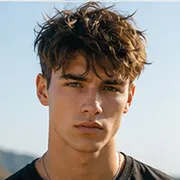
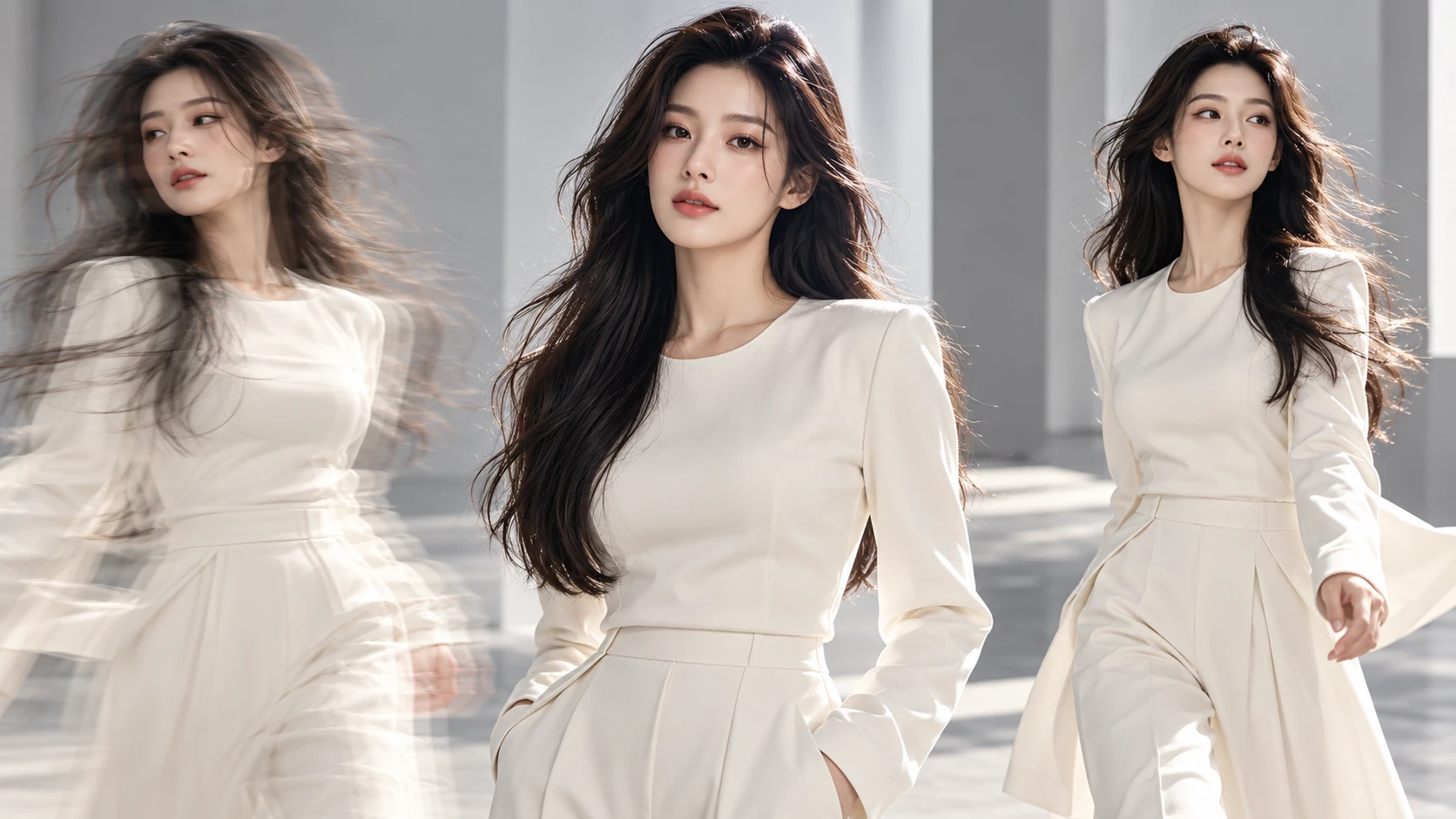
A beautiful reference image. A carefully written Video Prompt. A video model that seems perfect for the job.
Everything looks ready.
Then you open the generated video, and something goes wrong.
The character's hand moves unnaturally. A product suddenly changes its appearance. Or the camera performs an unexpected rotation when all you wanted was a slow, gentle push-in.
If you've used Movmix AI Image to Video, you've probably encountered something similar.
These are common AI video generation problems.
When a result goes wrong, the first instinct is often to add more instructions to the prompt. But longer prompts don't always solve the problem.
Sometimes the issue comes from the first-frame image. Sometimes the requested movement is too complicated. And sometimes, the easiest solution is to handle the problem during editing rather than generation.
In this guide, we'll look at seven common AI video mistakes and walk through three practical examples covering character movement, camera control, and incorrect text.
The goal is simple: find the actual problem before spending another generation trying to fix it.
1. Why Do AI Video Generation Problems Happen?
AI video models use images, reference materials, and text instructions to generate a sequence of moving frames.
However, a static image doesn't always contain all the information needed to complete a particular action.
For example, a portrait might hide part of a character's arm. A product photograph might only show one side of the object. And a complicated Video Prompt might ask for character movement, camera rotation, and background changes within the same few seconds.
When several challenging requirements are combined, the result may not match your original intention.
A failed generation doesn't mean you need to recreate everything. The first step is identifying which part of the workflow needs attention.
Use this table for a quick diagnosis.
| Common Problem | Possible Cause | What to Try First |
|---|---|---|
| Character appearance changes | Unclear reference image or excessive movement | Strengthen the reference and simplify the action |
| Distorted hands or body parts | Occlusion or complicated joint movement | Adjust the first frame and reduce motion |
| Objects suddenly disappear | Unclear object position or complex interaction | Define the object's starting position |
| AI ignores the Video Prompt | Too many simultaneous instructions | Reduce the number of actions |
| Camera movement goes wrong | Vague or conflicting camera instructions | Specify the camera's direction and speed |
| Incorrect text appears | Unstable text rendering during generation | Generate a clean video and add text afterward |
| Separate clips don't match | No shared visual starting point | Use the previous clip's final frame |
Let's begin with three practical examples.
2. Example 1: How to Fix Unnatural Hand Movements
Problem: A character's fingers or arms become distorted during a simple movement.
This is one of the more noticeable problems in character-based AI videos.
Imagine generating a fashion portrait where a model gently adjusts her hair. Instead of a smooth movement, the hand might cover her face unexpectedly, the arm might move unnaturally, or the fingers might change shape.
The solution isn't necessarily to keep adding instructions.
Start by checking the hand position in the reference image and the complexity of the requested movement.
Reference Image Prompt
Instead of asking the model to lift an arm from a fully lowered position, we'll prepare a first frame where the right hand is already close to the hair.
| Reference Image Prompt | Output |
|---|---|
| 16:9 horizontal premium fashion editorial photograph. A beautiful fashion model with long black hair stands in a bright modern minimalist photography studio, wearing a simple tailored light-gray jacket and facing slightly toward the camera. Her right arm is naturally raised, with her right hand positioned near the hair beside her right ear. All five fingers are clearly visible, and the hand does not cover her face. Her left arm rests naturally. Show the complete head, shoulders, and both arms, with clear facial and hand details. Soft natural lighting, fixed medium shot, realistic fashion photography, no text, no logo, no watermark. | 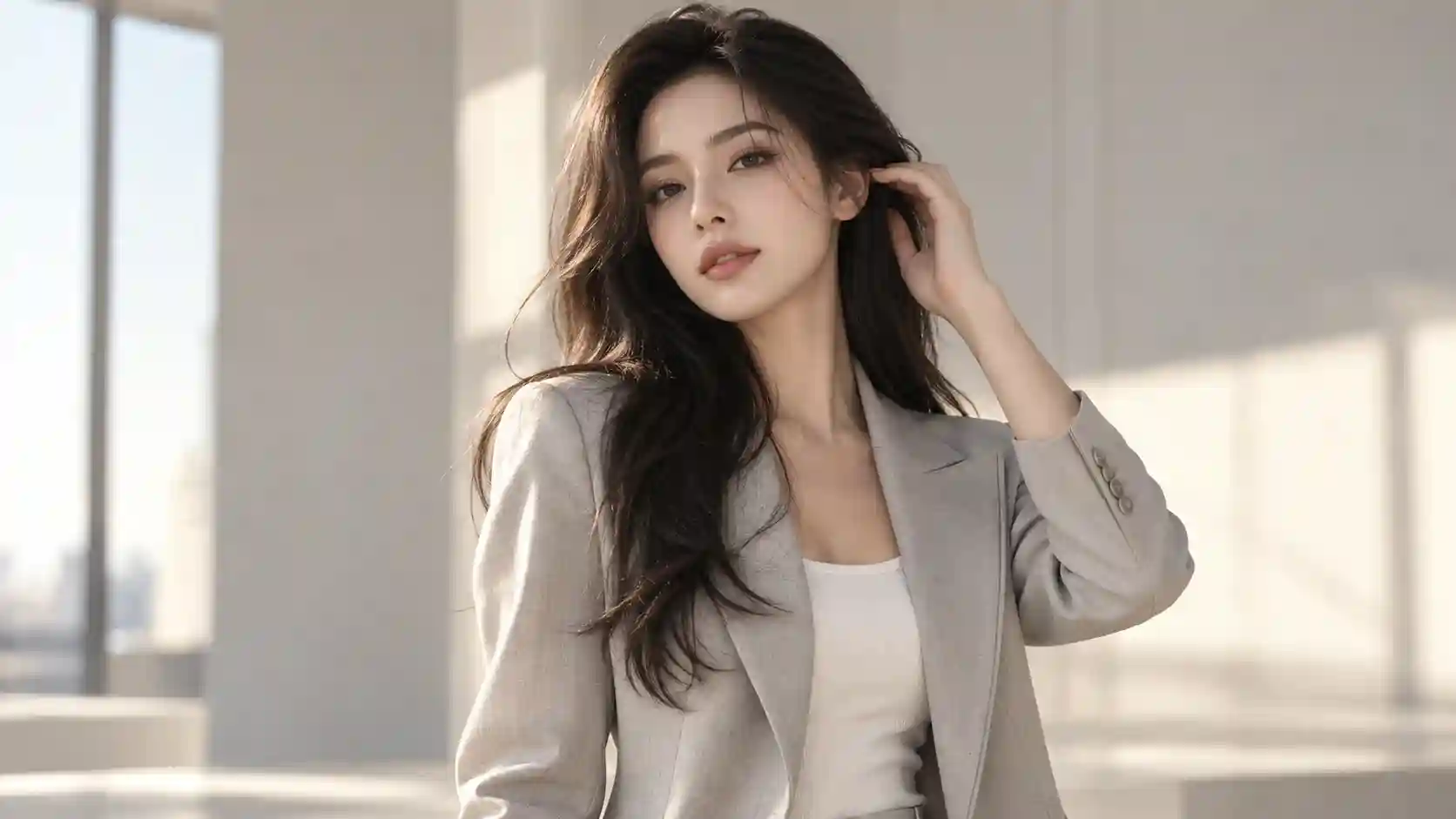 |
Video Prompt
6-second fashion portrait shot. The model maintains her original standing pose and gently adjusts a small section of hair beside her right ear, then naturally rests her hand near her shoulder. Keep the movement subtle, with naturally curved fingers and the hand clearly visible throughout the action. The hand must not cover the face. Keep the body stable and the left arm still. Use a fixed camera. Preserve the model's facial features, hairstyle, light-gray jacket, arm structure, and studio background. Smooth, slow, continuous movement.
What If the Hand Still Looks Wrong?
Try reducing the movement further.
Instead of asking the character to raise her hand, adjust her hair, turn her head, and smile, keep only one action: gently adjusting the hair beside her ear.
Corrective Prompt:
Maintain the character's original standing pose. The right hand performs only a small hair-adjustment movement near the ear and shoulder, without crossing in front of the face or changing the arm position significantly. Keep all five fingers naturally formed and clearly visible. The hand movement must be slow and continuous. Keep the rest of the body stable and the camera fixed.
What it does: Shortens the hand's movement path and reduces complicated overlaps and joint changes.
Best for: Fashion Videos, Portrait Animation, Character-Based Advertising.
Watch out: If the original reference image already contains overlapping fingers or unclear hand details, fix the image first. A Video Prompt cannot reliably compensate for every problem in the starting frame.
Key takeaway: When an action repeatedly fails, try reducing the movement range instead of making the prompt longer.
3. Example 2: How to Fix Unwanted Camera Movement
Problem: You ask for a slow camera push-in, but the result includes sudden rotation, rapid zooming, or unexpected tilting.
Sometimes, a prompt contains nothing more specific than:
"Use dramatic cinematic camera movement to explore the scene."
It sounds impressive, but it doesn't tell the model exactly where the camera should go.
If you want a controlled result, describe the movement direction, speed, range, and restrictions.
Let's use a magnificent classical library as our example.
| Reference Image Prompt | Output |
|---|---|
| 16:9 horizontal cinematic photograph of a magnificent classical library interior. Tall arched ceilings, symmetrical rows of dark wooden bookshelves, elegant brass wall lamps, and a wide central passage made of light-colored stone. A large arched glass window stands at the far end of the passage, allowing warm natural light to illuminate the interior. Position the camera directly in the center of the passage with a perfectly symmetrical composition and strong spatial depth. Realistic cinematic architecture photography, impressive sense of scale, no people, no text, no logo, no watermark. |  |
An Ambiguous Video Prompt
For example:
Let the camera explore this magnificent library with dramatic cinematic movement, revealing the architecture and intricate details.
The problem is that the camera path isn't defined.
The model has to decide what "explore" means, which may introduce movements you never intended.
Improved Video Prompt
6-second cinematic architecture shot. The camera begins in the center of the library passage and moves slowly forward at a constant speed, following the central aisle toward the large arched glass window. Keep the camera level and maintain a consistent height throughout the shot. Do not rotate, tilt, accelerate suddenly, or change the shooting direction. The wooden bookshelves, brass lamps, arched ceiling, and stone flooring remain completely stationary. Preserve the original architecture and stable natural lighting. Maintain a symmetrical composition throughout the movement.
What it does: Creates a smooth cinematic camera movement through an architectural scene while maintaining a consistent viewing direction.
Best for: Architectural Videos, Cinematic Scenes, Environment Showcases.
Watch out: Avoid requesting a push-in, sideways movement, orbit, and rapid pull-back in the same short clip.
If your project genuinely requires multiple camera movements, consider splitting them into separate shots.
Key takeaway: Don't just ask for a cinematic camera. Tell the model exactly how the camera should move.
4. Example 3: How to Fix Incorrect Text in AI Videos
Problem: Your video looks great, but the generated English title contains spelling mistakes or distorted letters.
This issue is particularly noticeable in brand commercials and promotional content.
You might request one simple advertising headline, only to receive incorrect spelling, extra letters, or text that changes shape during the video.
If the final video needs to be published, there's a more controllable solution:
Generate the video without text, then add the exact wording during editing.
Let's demonstrate this with a visually striking fashion commercial.
| Reference Image Prompt | Output |
|---|---|
| 16:9 horizontal premium fashion brand advertisement. A beautiful blonde fashion model stands inside a modern minimalist architectural space, wearing a sharply tailored deep-red long coat. Her body is slightly turned toward the camera, with a calm, confident expression. The background features light-gray architectural walls and soft geometric lighting patterns. Position the model slightly right of center, leaving generous clean negative space on the left for later text placement. Realistic international fashion editorial photography, bright modern aesthetic, strong visual impact, no text, no logo, no watermark. | 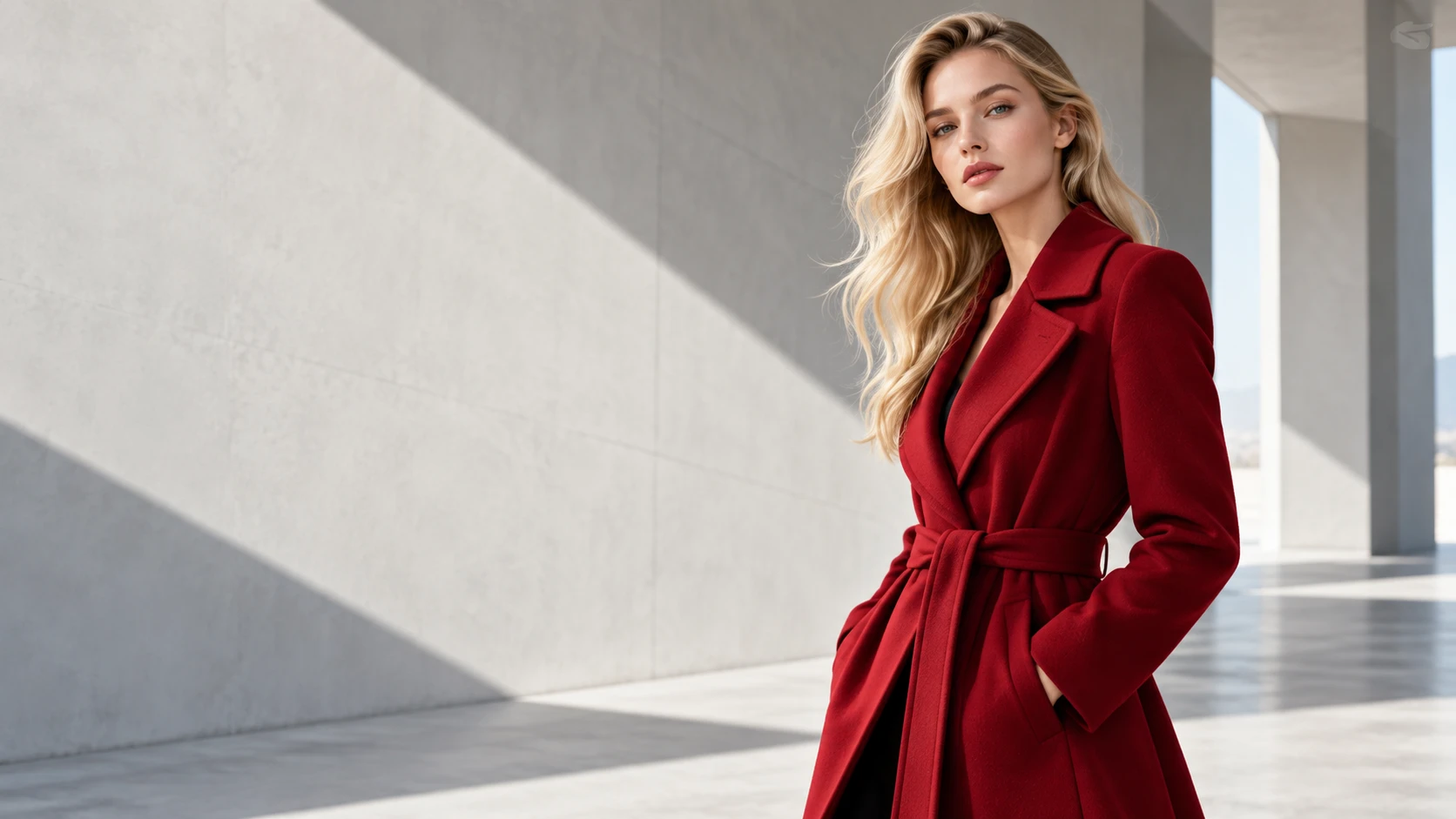 |
Video Prompt
6-second premium fashion commercial. The model maintains her original standing pose and slowly turns her head toward the camera. Her blonde hair moves gently in a soft natural breeze. The camera performs a very slow forward push-in. Keep the light-gray architectural background and geometric lighting stable. Preserve the clean negative space on the left side of the frame for text to be added during editing. Maintain the model's facial features, deep-red long coat, hairstyle, and original environment. Do not generate any text, captions, brand names, logos, or graphic symbols.
Add the Text During Editing
Once the clean video is ready, add your advertising headline using CapCut or another editing tool.
For this example, we'll use:
NEW PERSPECTIVE
Suggested text timing:
| Timing | Text Animation |
|---|---|
| 0–1s | No text |
| 1–2s | Headline gradually fades in on the left |
| 2–5s | Headline remains fully visible |
| 5–6s | Headline fades out naturally |
Use a clean sans-serif font and avoid covering the model.
What it does: Separates video generation from typography, giving you more accurate control over spelling, font selection, placement, and animation timing.
Best for: Fashion Ads, Brand Campaigns, Promotional Videos.
Watch out: If your first-frame image already contains incorrect text, the video may inherit it. Prepare a clean reference image with an empty area for typography from the beginning.
Key takeaway: For text that must be accurate, generate the visuals first and handle typography during editing.
5. Four More Common AI Video Generation Problems
Beyond the three practical demonstrations, there are four other issues worth checking.
Problem 4: Character Appearance Keeps Changing
Sometimes a character looks exactly right in the first frame, but their face, hairstyle, or clothing gradually changes as the video continues.
Start by checking whether the reference image is clear and whether the Video Prompt requests excessive body rotation or camera movement.
If preserving the character's appearance is the main goal, try a stable camera and smaller movements first.
Corrective Prompt:
Use the reference image as the visual foundation for the character. Maintain the same facial features, hairstyle, clothing, body proportions, and colors throughout the video. The character performs only subtle natural head movement. Keep the camera stable. Do not redesign the character, change the outfit, or alter the background.
If the starting image itself needs improvement, revisit our First Frame for AI Video guide to learn how to prepare a clearer composition and starting pose before generating the video.
Problem 5: Objects Suddenly Appear, Disappear, or Change Position
Imagine a character holding a coffee cup. A few seconds later, the cup suddenly disappears.
When your video includes an important object, describing the character's movement alone isn't enough.
You should also specify where the object is, who is holding it, and whether it should move during the shot.
Corrective Prompt:
The character holds the same white ceramic coffee cup in their right hand throughout the video. Preserve the cup's original appearance, size, and color. The character slowly raises the cup and then naturally pauses. The cup must remain visible and must not disappear, change design, or suddenly move to the other hand. Preserve the table and surrounding environment.
However, if the original reference image contains heavy occlusion or the requested interaction is especially complicated, adding more prompt instructions may not be sufficient.
In that case, simplify the action first.
Problem 6: AI Doesn't Follow the Video Prompt
You ask a character to turn their head, wave, and then walk toward the camera.
The generated video only completes one of those actions.
The problem may be that you've included too many sequential tasks in a short clip.
Try removing secondary actions and defining one main movement.
For example, instead of:
The character turns their head, waves, turns around, walks forward, and smiles while the camera circles around them.
Use:
The character maintains their original standing pose, slowly turns their head toward the camera, and then gives a natural gentle smile. Keep the camera fixed. The body remains in the same position, and the clothing and background stay unchanged.
Once the simpler version works, you can consider adding other movements.
For short AI videos, one clearly defined action is often easier to control and evaluate than several competing instructions.
Problem 7: Separate AI Video Clips Don't Connect Naturally
This is different from problems that occur within a single clip.
For example, Shot 1 ends with a character facing a window, but Shot 2 suddenly begins with the character in a different position.
If you're creating a multi-shot video, plan the relationship between consecutive shots during generation.
One practical approach is:
Shot 1 → Extract its final frame → Use it as the starting reference for Shot 2 → Generate Shot 2.
This method doesn't guarantee perfect consistency, but it provides a clearer visual starting point for the next clip.
For the complete workflow, see our AI Video Continuity guide.
6. How to Troubleshoot AI Video Generation in Movmix
We've covered seven common issues, but in a real project, identifying the actual cause isn't always straightforward.
Here's a simple troubleshooting process.
Step 1: Check Your First Frame
Make sure the character, product, important objects, and environment are clearly presented.
If the starting image contains an obvious problem, don't rush into repeated video generation.
For example, if a character's hand is heavily obscured or the subject is already cropped at the edge of the frame, improve the reference image first.
Step 2: Review Your Video Prompt
Check whether you're requesting too much within a short clip.
Pay particular attention to these situations:
- Several complicated actions are requested simultaneously.
- The camera is instructed to move in conflicting directions.
- The first frame already shows the completed action, but the prompt asks the model to perform it again.
- The background must remain unchanged, yet the prompt also requests a major environmental transformation.
When instructions conflict, remove unnecessary requirements first.
Step 3: Choose the Right Fix
| Where Is the Problem? | Recommended Solution |
|---|---|
| Incorrect first-frame composition | Adjust or regenerate the reference image |
| Movement is too complicated | Simplify the Video Prompt |
| Camera movement is wrong | Specify its direction and speed |
| Reference materials conflict | Reduce references and clarify their roles |
| Text is incorrect | Generate a clean video and add text afterward |
| Separate clips don't connect | Use the previous clip's ending frame to prepare the next shot |
Step 4: Change One Main Variable at a Time
Suppose the character movement looks fine, but the camera suddenly rotates.
Don't immediately change the model, image, outfit, and action.
Keep the other conditions consistent and adjust the camera instructions first.
That makes it easier to understand whether your latest change actually addressed the problem.
7. AI Video Troubleshooting Checklist
The next time a generated video doesn't look right, use this quick checklist.
| Check | Question to Ask |
|---|---|
| Reference Image | Is the main subject complete and clearly visible? |
| Starting Pose | Does the first frame support the intended movement? |
| Action | Are too many sequential actions requested? |
| Camera | Is the camera movement clearly defined? |
| Background | Which environmental details must remain unchanged? |
| Objects | Are the positions and states of important objects clear? |
| Text | Would typography be better handled during editing? |
| Continuity | Do consecutive shots have compatible starting and ending states? |
You don't need to adjust every item after each unsuccessful result.
Find the most obvious issue first, then work on the part of the workflow responsible for it.
FAQ: AI Video Generation Problems
Why can the same prompt generate different results?
AI video output can vary depending on the model, reference materials, and generation process. Using the same prompt doesn't necessarily produce an identical video every time, so important shots may require testing and selection.
Will adding more details fix AI video errors?
Not always. Clear restrictions can help, but excessive or conflicting instructions may also make the task harder.
Focus on the main action, camera movement, and elements that must remain unchanged.
Should I regenerate the reference image if a character's hand looks wrong?
Check the first frame first.
If the hand is already obscured or unclear, improve the image. If the starting image looks correct, try reducing the movement range or simplifying the action.
Can incorrect text in AI videos be fixed with prompts?
You can try, but for brand names, product information, or advertising copy that must appear accurately, adding text during editing is generally easier to control.
Why does my AI video keep adding unnecessary camera movement?
The camera instructions may be too vague or contain conflicting requirements.
Try specifying a fixed camera or limiting the movement to one slow, clearly defined direction.
When should I regenerate a clip instead of fixing it during editing?
If the subject has changed significantly, an important object has disappeared, or the action is completely different from your creative goal, regenerating that section may be necessary.
If the issue involves cropping, captions, or minor editing adjustments, try fixing it during post-production first.
Final Thoughts: Diagnose the Problem Before Generating Again
When you encounter AI video generation problems, clicking Generate again and hoping for a better result is tempting.
But if the original issue remains in your first frame, prompt, or reference materials, repeated attempts may produce similar mistakes.
The seven problems in this guide can be summarized into three practical troubleshooting directions:
If the first frame is the problem, improve the reference image.
If the movement or camera behavior is wrong, simplify and clarify the Video Prompt.
If the issue involves typography or visual layout, consider handling it during editing.
Once you know which part of the workflow needs attention, AI video creation becomes much easier to manage.
Ready to test these fixes? Open Movmix AI Video Generator, choose a suitable model, and start with one simple shot before gradually increasing the complexity of your project.
Better AI videos don't always need longer prompts. They need clearer problems and smarter fixes.
'%3e%3crect%20y='2.1906'%20width='26'%20height='17.4314'%20rx='1.55981'%20fill='white'/%3e%3c/g%3e%3crect%20x='0.311961'%20y='2.50256'%20width='25.3761'%20height='16.8075'%20rx='1.24784'%20stroke='%2322257C'%20stroke-width='0.623922'/%3e%3c/g%3e%3crect%20x='13.078'%20y='15.5656'%20width='10.8016'%20height='2.49569'%20rx='0.623922'%20fill='%2366B3FF'%20stroke='%2322257C'%20stroke-width='0.623922'/%3e%3crect%20x='-0.311961'%20y='0.311961'%20width='10.8016'%20height='2.49569'%20rx='0.623922'%20transform='matrix(-1%200%200%201%2012.61%2015.2536)'%20fill='%2366B3FF'%20stroke='%2322257C'%20stroke-width='0.623922'/%3e%3crect%20x='10.3093'%20y='13.3231'%20width='4.91339'%20height='6.98013'%20rx='2.45669'%20fill='%2322257C'/%3e%3cpath%20d='M18.9174%200.31543C20.5962%200.268025%2022.1261%200.655527%2023.9487%201.55762C24.0483%201.60695%2024.1137%201.71153%2024.1137%201.8291V16.502C24.1137%2016.7236%2023.8763%2016.891%2023.6499%2016.7979C21.803%2016.0377%2020.2158%2015.6963%2018.4975%2015.7705C16.8915%2015.8399%2015.1907%2016.2732%2013.0776%2017.0332V1.6709C15.4678%200.825877%2017.2746%200.36187%2018.9174%200.31543Z'%20fill='white'%20stroke='%2322257C'%20stroke-width='0.623922'/%3e%3cpath%20d='M15.3008%204.57C16.3536%203.94578%2019.2783%203.20503%2021.8909%203.94608'%20stroke='%2366B3FF'%20stroke-width='0.935883'%20stroke-linecap='round'/%3e%3cpath%20d='M15.3008%207.26054C16.3536%206.63631%2019.2783%205.89557%2021.8909%206.63661'%20stroke='%2366B3FF'%20stroke-width='0.935883'%20stroke-linecap='round'/%3e%3cpath%20d='M15.3008%209.95107C16.3536%209.32684%2019.2783%208.5861%2021.8909%209.32714'%20stroke='%2366B3FF'%20stroke-width='0.935883'%20stroke-linecap='round'/%3e%3cpath%20d='M15.3008%2012.6398C16.3536%2012.0156%2019.2783%2011.2749%2021.8909%2012.0159'%20stroke='%2366B3FF'%20stroke-width='0.935883'%20stroke-linecap='round'/%3e%3cpath%20d='M7.08257%200.31543C5.40384%200.268025%203.87393%200.655527%202.05132%201.55762C1.95165%201.60695%201.88628%201.71153%201.88628%201.8291V16.502C1.88628%2016.7236%202.12373%2016.891%202.35014%2016.7979C4.19702%2016.0377%205.78418%2015.6963%207.50249%2015.7705C9.10852%2015.8399%2010.8093%2016.2732%2012.9224%2017.0332V1.6709C10.5322%200.825877%208.72541%200.36187%207.08257%200.31543Z'%20fill='white'%20stroke='%2322257C'%20stroke-width='0.623922'/%3e%3cpath%20d='M10.6992%204.57C9.64638%203.94578%206.72175%203.20503%204.10907%203.94608'%20stroke='%2366B3FF'%20stroke-width='0.935883'%20stroke-linecap='round'/%3e%3cpath%20d='M10.6992%207.26054C9.64638%206.63631%206.72175%205.89557%204.10907%206.63661'%20stroke='%2366B3FF'%20stroke-width='0.935883'%20stroke-linecap='round'/%3e%3cpath%20d='M10.6992%209.95107C9.64638%209.32684%206.72175%208.5861%204.10907%209.32714'%20stroke='%2366B3FF'%20stroke-width='0.935883'%20stroke-linecap='round'/%3e%3cpath%20d='M10.6992%2012.6398C9.64638%2012.0156%206.72175%2011.2749%204.10907%2012.0159'%20stroke='%2366B3FF'%20stroke-width='0.935883'%20stroke-linecap='round'/%3e%3c/g%3e%3cdefs%3e%3cfilter%20x='0'%20y='2.1906'%20width='26'%20height='17.4314'%20filterUnits='userSpaceOnUse'%20color-interpolation-filters='sRGB'%3e%3cfeFlood%20flood-opacity='0'%20result='BackgroundImageFix'/%3e%3cfeBlend%20mode='normal'%20in='SourceGraphic'%20in2='BackgroundImageFix'%20result='shape'/%3e%3cfeColorMatrix%20in='SourceAlpha'%20type='matrix'%20values='0%200%200%200%200%200%200%200%200%200%200%200%200%200%200%200%200%200%20127%200'%20result='hardAlpha'/%3e%3cfeOffset%20dy='-1.24784'/%3e%3cfeComposite%20in2='hardAlpha'%20operator='arithmetic'%20k2='-1'%20k3='1'/%3e%3cfeColorMatrix%20type='matrix'%20values='0%200%200%200%200.572549%200%200%200%200%200.768627%200%200%200%200%200.976471%200%200%200%201%200'/%3e%3cfeBlend%20mode='normal'%20in2='shape'%20result='effect1_innerShadow_0_4'/%3e%3c/filter%3e%3c/defs%3e%3c/svg%3e)