You do not need a camera crew. You need one still and a sentence that says what moves.
That is the whole method if you want to know how to make an AI video without drowning in settings. On Movmix the clean path is: make or upload a photo, send it through photo to video AI, keep the clip to three seconds. Models on the home strip — Seedance, Kling, Wan, Veo — can wait. First clip first.
Minute 0–3: Get a still that can survive motion
Video inherits the photo. A plastic face becomes a plastic clip.
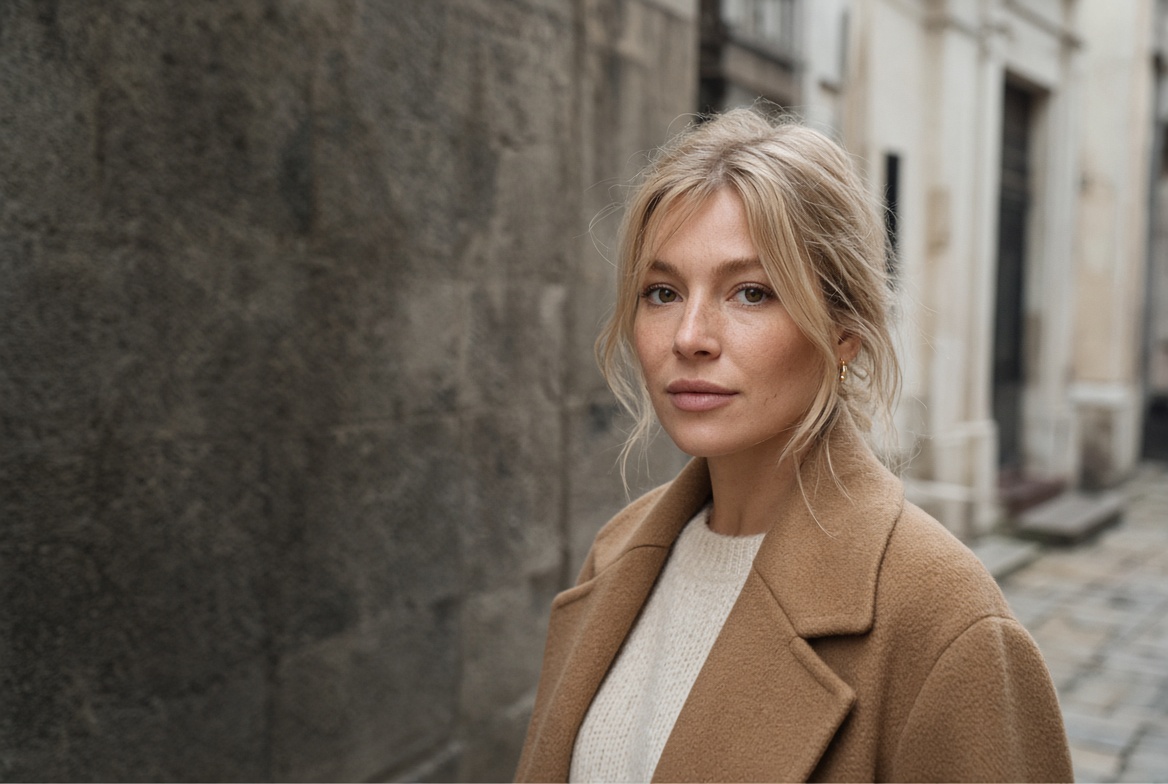
Use a real photo, or generate one under Image. Daylight. Eyes visible. One small landmark — a gold hoop, a coat color — so the next frame still looks like her.
Do not write a novel. This is enough:
If the still already exists on your phone, skip this step. Photo to video AI does not require you to generate the first frame on the same site. It only requires the frame to be sharp.
Minute 3–7: Open Video and describe only the motion
Go to Video on the left. Upload the still. This is image-to-video, not a second casting session.
The box does not need the biography again. The picture already has her. Write what happens in three seconds:
| Prompt | Upload Image |
|---|---|
| Keep the same face. Light wind in her hair and coat. She looks slightly off camera. Slow push-in, 3 seconds. Do not change her face. Do not add people. | 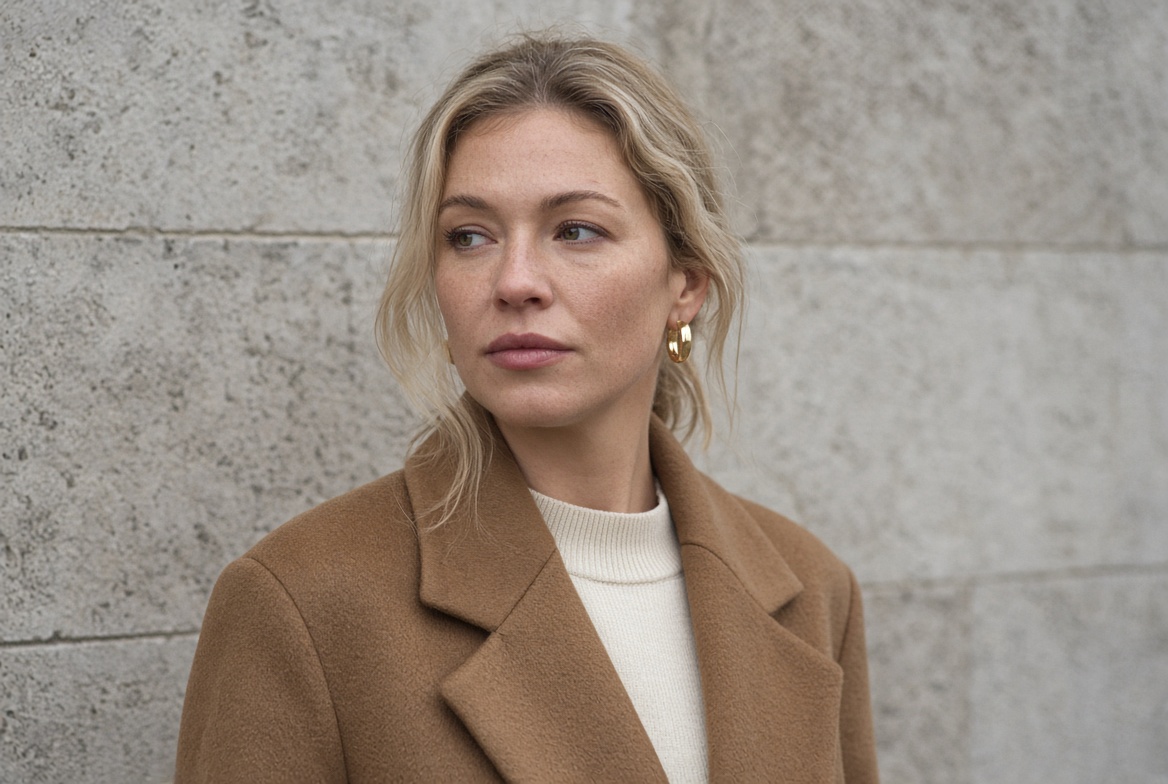 |
Output:
Three things that waste the first generate:
- Asking her to walk, turn, smile, and wave in one line
- Pasting “cinematic, 8k, masterpiece” on top of a photo that is already finished
- Picking the longest duration on the first try
If the model list feels loud, pick one and stay there for this clip. Switching engines mid-test makes you think the prompt failed when the face just drifted.
Minute 7–10: Watch once, then stop or extend
Play the clip once.
- Face still hers → export, or extend a few seconds
- Face softened or aged → do not add more adjectives. Re-upload the still and shorten the motion
- Hands melted → crop tighter or keep her hands out of the request
You now have a usable short. That is enough for a Reel cover or a test post. A ten-second story is a later article.
A second shot without losing her
If you need a cafe window after the street:
- Keep the street still as the reference.
- Change only the place.
- Run image-to-image or a new image-to-video from that same file.
| Prompt | Output |
|---|---|
| Same woman as the reference. Same gold hoop, camel coat, freckles. Quiet cafe window, overcast daylight. Do not change her face. | 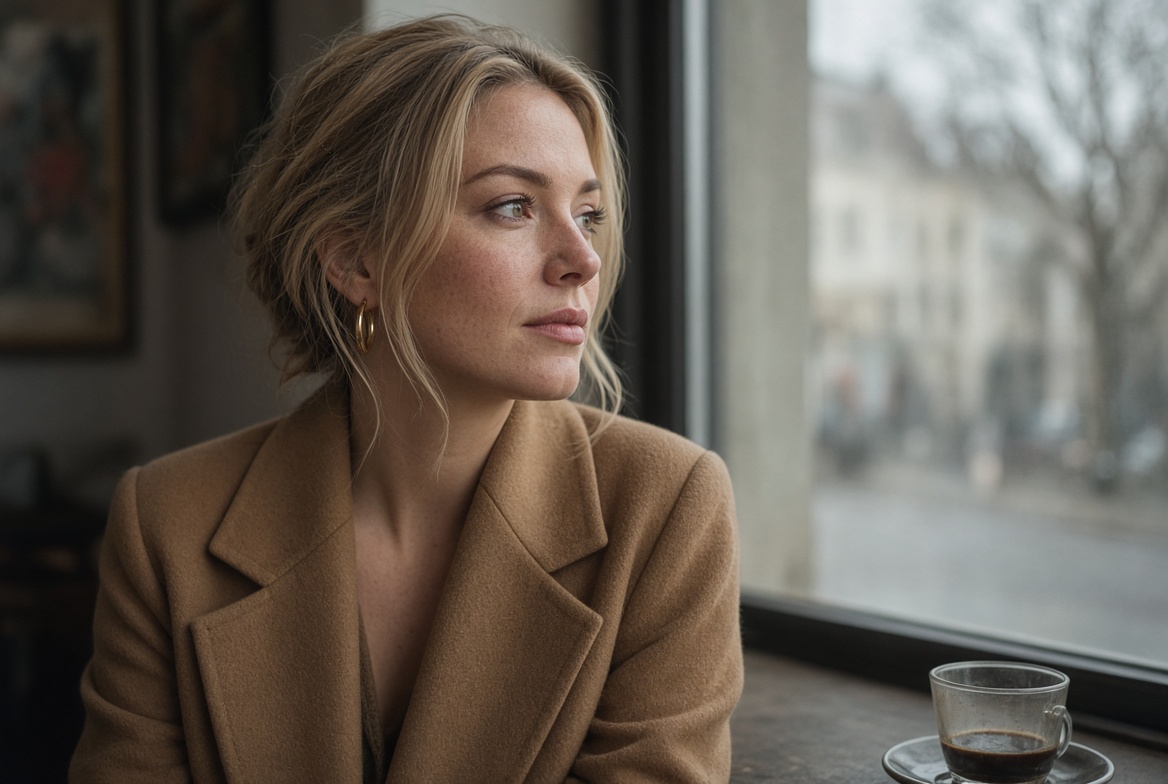 |
Two changes at once — new coat and new street — and you will not know what broke the likeness.
FAQ
Is this the same as text to video?
No. Text to video invents the person. Photo to video AI starts from a frame you already accepted. For a first clip, start from a photo.
Which Movmix model should I pick?
Any one. Consistency matters more than the logo on the first afternoon. Compare models after you have a still you trust.
Can I start from text only?
Yes. Generate the still under Image, then send that file to Video. Do not jump straight to a long text-to-video prompt for your first output.
'%3e%3crect%20y='2.1906'%20width='26'%20height='17.4314'%20rx='1.55981'%20fill='white'/%3e%3c/g%3e%3crect%20x='0.311961'%20y='2.50256'%20width='25.3761'%20height='16.8075'%20rx='1.24784'%20stroke='%2322257C'%20stroke-width='0.623922'/%3e%3c/g%3e%3crect%20x='13.078'%20y='15.5656'%20width='10.8016'%20height='2.49569'%20rx='0.623922'%20fill='%2366B3FF'%20stroke='%2322257C'%20stroke-width='0.623922'/%3e%3crect%20x='-0.311961'%20y='0.311961'%20width='10.8016'%20height='2.49569'%20rx='0.623922'%20transform='matrix(-1%200%200%201%2012.61%2015.2536)'%20fill='%2366B3FF'%20stroke='%2322257C'%20stroke-width='0.623922'/%3e%3crect%20x='10.3093'%20y='13.3231'%20width='4.91339'%20height='6.98013'%20rx='2.45669'%20fill='%2322257C'/%3e%3cpath%20d='M18.9174%200.31543C20.5962%200.268025%2022.1261%200.655527%2023.9487%201.55762C24.0483%201.60695%2024.1137%201.71153%2024.1137%201.8291V16.502C24.1137%2016.7236%2023.8763%2016.891%2023.6499%2016.7979C21.803%2016.0377%2020.2158%2015.6963%2018.4975%2015.7705C16.8915%2015.8399%2015.1907%2016.2732%2013.0776%2017.0332V1.6709C15.4678%200.825877%2017.2746%200.36187%2018.9174%200.31543Z'%20fill='white'%20stroke='%2322257C'%20stroke-width='0.623922'/%3e%3cpath%20d='M15.3008%204.57C16.3536%203.94578%2019.2783%203.20503%2021.8909%203.94608'%20stroke='%2366B3FF'%20stroke-width='0.935883'%20stroke-linecap='round'/%3e%3cpath%20d='M15.3008%207.26054C16.3536%206.63631%2019.2783%205.89557%2021.8909%206.63661'%20stroke='%2366B3FF'%20stroke-width='0.935883'%20stroke-linecap='round'/%3e%3cpath%20d='M15.3008%209.95107C16.3536%209.32684%2019.2783%208.5861%2021.8909%209.32714'%20stroke='%2366B3FF'%20stroke-width='0.935883'%20stroke-linecap='round'/%3e%3cpath%20d='M15.3008%2012.6398C16.3536%2012.0156%2019.2783%2011.2749%2021.8909%2012.0159'%20stroke='%2366B3FF'%20stroke-width='0.935883'%20stroke-linecap='round'/%3e%3cpath%20d='M7.08257%200.31543C5.40384%200.268025%203.87393%200.655527%202.05132%201.55762C1.95165%201.60695%201.88628%201.71153%201.88628%201.8291V16.502C1.88628%2016.7236%202.12373%2016.891%202.35014%2016.7979C4.19702%2016.0377%205.78418%2015.6963%207.50249%2015.7705C9.10852%2015.8399%2010.8093%2016.2732%2012.9224%2017.0332V1.6709C10.5322%200.825877%208.72541%200.36187%207.08257%200.31543Z'%20fill='white'%20stroke='%2322257C'%20stroke-width='0.623922'/%3e%3cpath%20d='M10.6992%204.57C9.64638%203.94578%206.72175%203.20503%204.10907%203.94608'%20stroke='%2366B3FF'%20stroke-width='0.935883'%20stroke-linecap='round'/%3e%3cpath%20d='M10.6992%207.26054C9.64638%206.63631%206.72175%205.89557%204.10907%206.63661'%20stroke='%2366B3FF'%20stroke-width='0.935883'%20stroke-linecap='round'/%3e%3cpath%20d='M10.6992%209.95107C9.64638%209.32684%206.72175%208.5861%204.10907%209.32714'%20stroke='%2366B3FF'%20stroke-width='0.935883'%20stroke-linecap='round'/%3e%3cpath%20d='M10.6992%2012.6398C9.64638%2012.0156%206.72175%2011.2749%204.10907%2012.0159'%20stroke='%2366B3FF'%20stroke-width='0.935883'%20stroke-linecap='round'/%3e%3c/g%3e%3cdefs%3e%3cfilter%20x='0'%20y='2.1906'%20width='26'%20height='17.4314'%20filterUnits='userSpaceOnUse'%20color-interpolation-filters='sRGB'%3e%3cfeFlood%20flood-opacity='0'%20result='BackgroundImageFix'/%3e%3cfeBlend%20mode='normal'%20in='SourceGraphic'%20in2='BackgroundImageFix'%20result='shape'/%3e%3cfeColorMatrix%20in='SourceAlpha'%20type='matrix'%20values='0%200%200%200%200%200%200%200%200%200%200%200%200%200%200%200%200%200%20127%200'%20result='hardAlpha'/%3e%3cfeOffset%20dy='-1.24784'/%3e%3cfeComposite%20in2='hardAlpha'%20operator='arithmetic'%20k2='-1'%20k3='1'/%3e%3cfeColorMatrix%20type='matrix'%20values='0%200%200%200%200.572549%200%200%200%200%200.768627%200%200%200%200%200.976471%200%200%200%201%200'/%3e%3cfeBlend%20mode='normal'%20in2='shape'%20result='effect1_innerShadow_0_4'/%3e%3c/filter%3e%3c/defs%3e%3c/svg%3e)