Most AI video workflows begin with a simple idea:
Upload an image and describe how it should move.
Gemini Omni can go much further.
You can start with a still image, edit an existing video, use one video as a motion reference, combine different reference assets, or continue changing the same result through natural-language instructions.
That changes the way you should think about Gemini Omni prompts.
Instead of asking only:
How should the character move?
A better question is:
What material do I already have, and what exactly do I want Gemini Omni to do with it?
This guide explores five different workflows, including image-to-video, object animation, video editing, motion reference, and conversational editing.
What Makes Gemini Omni Prompts Different?
1. Image-to-Video Is Not Just for People
A first frame can contain a person, but it can also contain a product, miniature model, illustration, handmade object, mechanical structure, or paper sculpture.
The useful prompt structure is:
What moves → how it moves → in what order → where it ends
2. You Can Edit Existing Video Instead of Regenerating Everything
Sometimes the original video is already good.
You may only want to add one visual effect, replace one object, change the lighting, or modify the camera behavior.
For this type of task, a useful structure is:
Keep → Change → Timing → Protect
The goal is to clearly separate what must remain untouched from what should change.
3. Different References Can Control Different Things
A reference image can define appearance.
A reference video can define motion.
Another image can define texture or style.
Audio can define timing or rhythm.
The important part is telling Gemini Omni what each reference is responsible for instead of simply uploading everything and hoping the model understands.
4. You Do Not Have to Write Everything in One Prompt
If the first result is already mostly correct, continue from it.
For example:
Keep everything else unchanged. Make the window light warmer.
Then:
Keep the current lighting. Now add a slow clockwise camera orbit.
This is often more controllable than rebuilding a complicated prompt from scratch.
5 Practical Gemini Omni Prompt Examples
Example 1 — Animated Character Catches a Butterfly
Let’s start with a simple animation instead of a complicated object transformation.
This example uses one character, one moving object, and one clear action. That makes it easier to control and also makes it a good first test for Gemini Omni image-to-video generation.
| Prompt | Output |
|---|---|
| Cute simple animated character standing in a small grassy field, stylized cartoon design, round head, small body, short arms and legs, gentle friendly expression, wearing a simple yellow shirt and blue shorts. A small colorful butterfly is flying slightly above and to the right of the character, clearly separated from the character's body. Bright soft daylight, clean blue sky, simple green grass, minimal playful environment, charming 2D animation style, clean shapes, consistent character design, full character clearly visible. 16:9, no text, no logo, no watermark. | 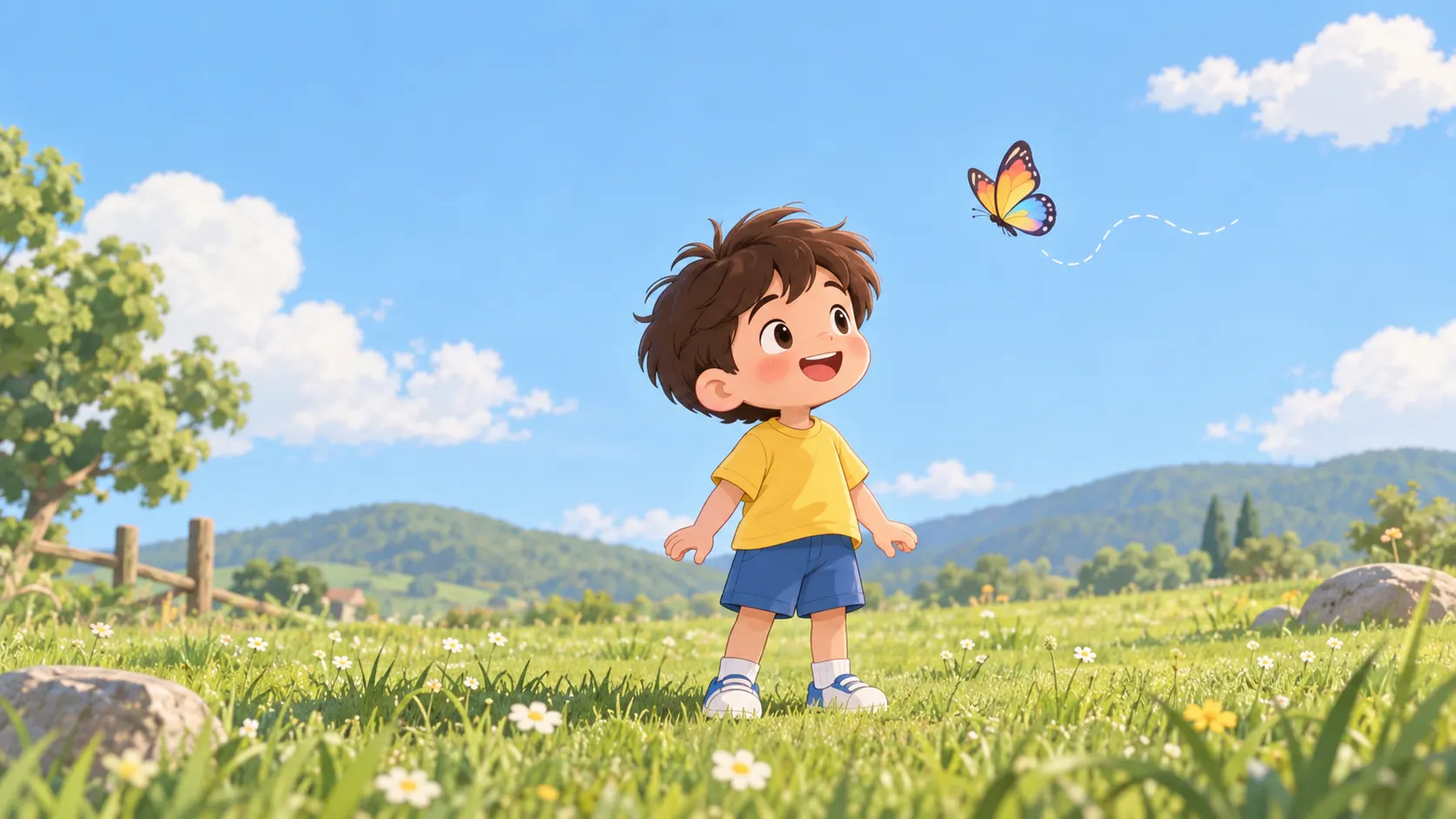 |
Gemini Omni Video Prompt:
Animate this image as a short, simple cartoon interaction. The character first looks upward toward the butterfly. The butterfly gently flutters in a small curved path toward the character while staying clearly visible. The character takes one small step forward and slowly raises both hands toward the approaching butterfly. The butterfly continues moving toward the space between the character's hands. The character gently brings both hands together and catches the butterfly. After catching it, the character lowers both hands slightly, looks at the butterfly with a happy expression, and pauses.
Why it works: The prompt does not jump directly from standing to catching the butterfly. Instead, it gives Gemini Omni a short and readable action sequence:
look → butterfly approaches → step forward → raise hands → catch → pause
This is much easier to generate than a scene with multiple moving parts or complicated physical interactions.
It also clearly separates the two movements: the butterfly moves toward the character, while the character reacts to it.
What you can change: Replace butterfly with falling leaf, paper airplane, soap bubble, or small glowing star. The environment can also change from a grassy field to a simple park, garden path, or cartoon backyard. For more reliable results, keep the basic structure the same: one character + one moving object + one short action.
Example 2 — Folding Sunglasses Product Motion
This workflow uses image-to-video again, but now the task is controlled product movement.
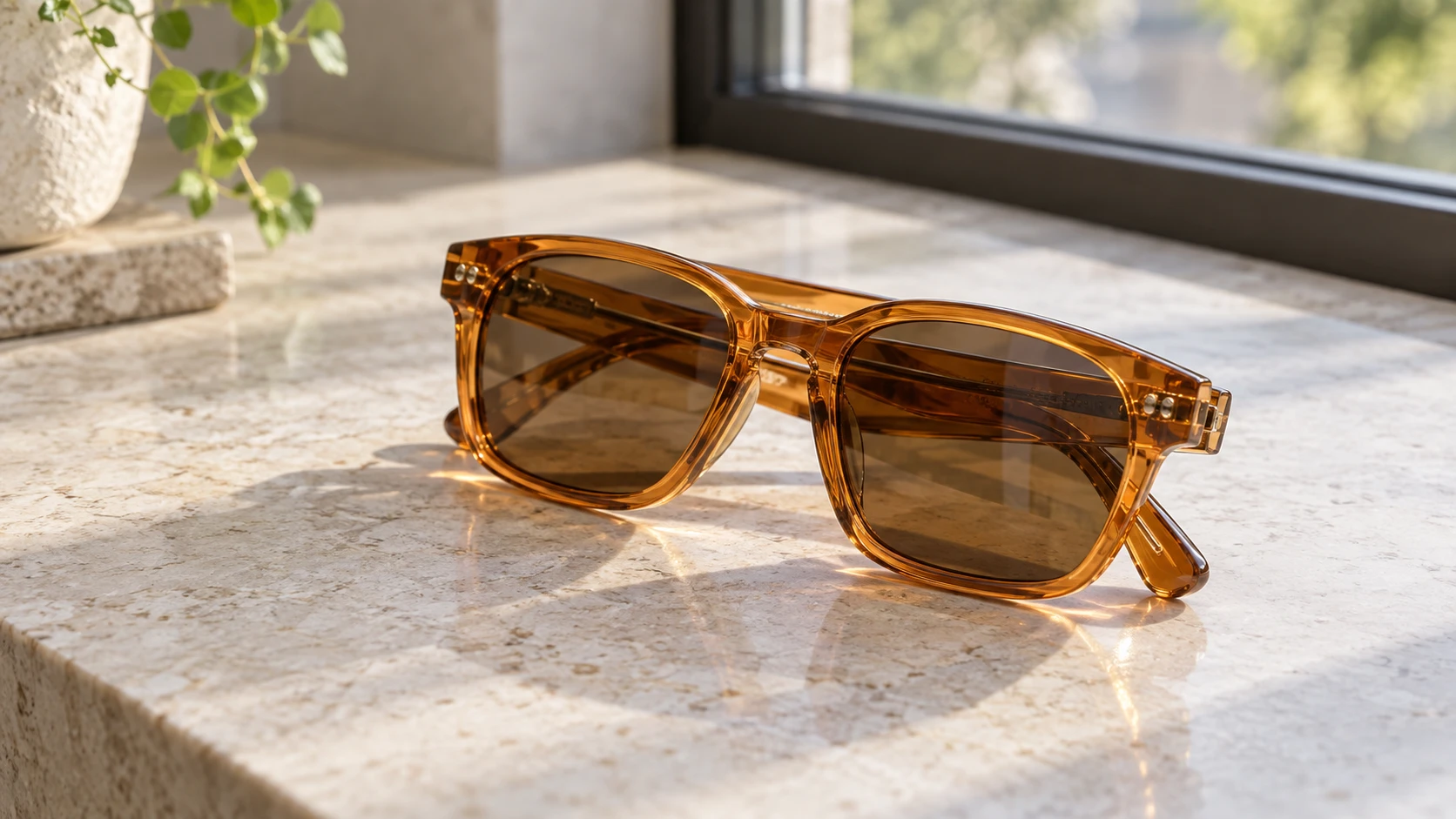
The first frame shows a pair of folded sunglasses.
Gemini Omni Video Prompt:
The sunglasses remain in place while both temples slowly unfold from the hinges in a natural mechanical motion. After the temples fully open, the sunglasses rotate slightly toward the window. Soft daylight reflections move across the lenses as the orientation changes. Keep the frame shape, hinges, lens color and proportions consistent. The camera remains mostly still. End with the sunglasses fully opened in a clean product-display position.
Why it works: Object animation becomes easier to control when you describe the real mechanical sequence:
hinges move → temples unfold → product rotates → final state
That is much clearer than simply saying:
Make the product come alive.
What you can change: The same approach can work with a folding desk lamp, compact camera, or mechanical desk toy. First identify which physical parts are actually supposed to move.
Example 3 — Add Animated Trails to a Skateboard Video
Now we switch from generating a video to editing an existing one.
Assume you already have a skateboard clip with turns and jumps.
Upload the original clip to Movmix's Gemini Omni AI Video Editor, then describe only the change you want.
Gemini Omni Editing Prompt:
Keep the original skateboarder, skateboard, body movement, environment, timing and camera motion unchanged. Add hand-drawn animated motion trails that follow directly behind the skateboard wheels during fast turns and jumps. The trails appear only when the board is moving quickly, stretch briefly behind the wheels, and naturally fade away after each movement. Use simple painted blue, yellow and orange strokes with slightly rough hand-drawn edges. Do not change the rider, skateboard, ground, background or original video timing.
Why it works: This follows a useful editing structure:
Keep → Add → Timing → Protect
The first instruction protects the original footage.
The second defines the new visual effect.
The third explains when the effect should appear and disappear.
The final line reinforces everything that must remain unchanged.
What you can change: Replace the motion trails with chalk-like marks, paper-cut shapes, or ink-style splashes. Keep the timing rule so the effect only appears during the relevant movement.
Example 4 — Transfer Motion From a Reference Video
This workflow needs two pieces of source material:
Reference Image: a handmade cardboard robot
Reference Video: a simple robotic-arm movement
Because we do not already have those assets, we first create them.
| Prompt | Output |
|---|---|
| Handmade cardboard robot standing upright on a clean workshop table, simple box-shaped torso, articulated cardboard arms with visible taped joints, rectangular head, painted paper details, natural kraft cardboard texture. Small craft tools softly blurred in the background, bright natural daylight, realistic handmade object photography, full-body view, centered composition. 16:9, no text, no logo, no watermark. | 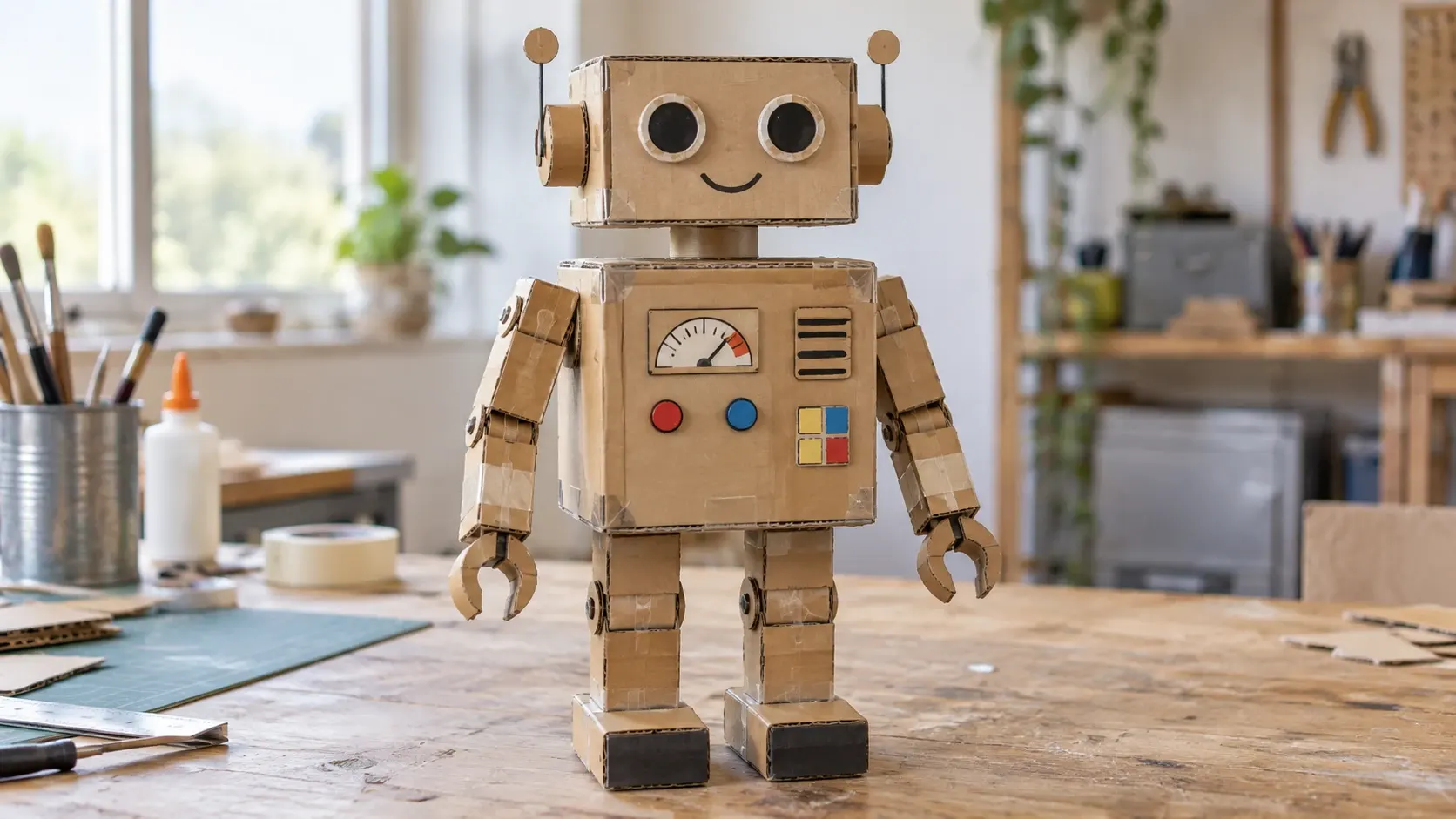 |
Next, generate a simple motion-reference video.
The movement is intentionally simple:
lift → bend → rotate → pause → lower
That makes the reference easier to interpret.
Once both assets are ready, upload them to Movmix's Gemini Omni Reference to Video workflow.
Gemini Omni Reference Prompt:
Use the cardboard robot from the reference image as the visual subject. Use the reference video only for motion: follow the same slow arm lift, elbow rotation, body pause and controlled lowering movement. Preserve the cardboard construction, taped joints, painted surface and handmade proportions from the image. Do not copy the appearance, materials or environment from the motion-reference video. The final video should show only the cardboard robot performing the referenced movement in its original setting.
Why it works: The two references are assigned different jobs:
Image = Appearance
Video = Motion
The sentence use the reference video only for motion is especially important because it reduces the chance of accidentally transferring the industrial appearance or background from the motion source.
Example 5 — Edit the Same Video Through Conversation
This example demonstrates something different again.
Instead of writing one large prompt, we build the result through several edits.
First, we need a simple base video.
Start by generating an architectural model image.
Now turn it into a deliberately simple base video.
Base Video Prompt:
Use the provided architectural model image as the first frame. Keep the apartment model completely unchanged. All windows remain dark and unlit. The camera stays fixed in the same three-quarter view. Only very subtle natural changes in ambient daylight are visible across the model. Keep the building structure, windows, miniature trees, sidewalks and table position perfectly consistent. No camera movement, no lights turning on, no moving objects.
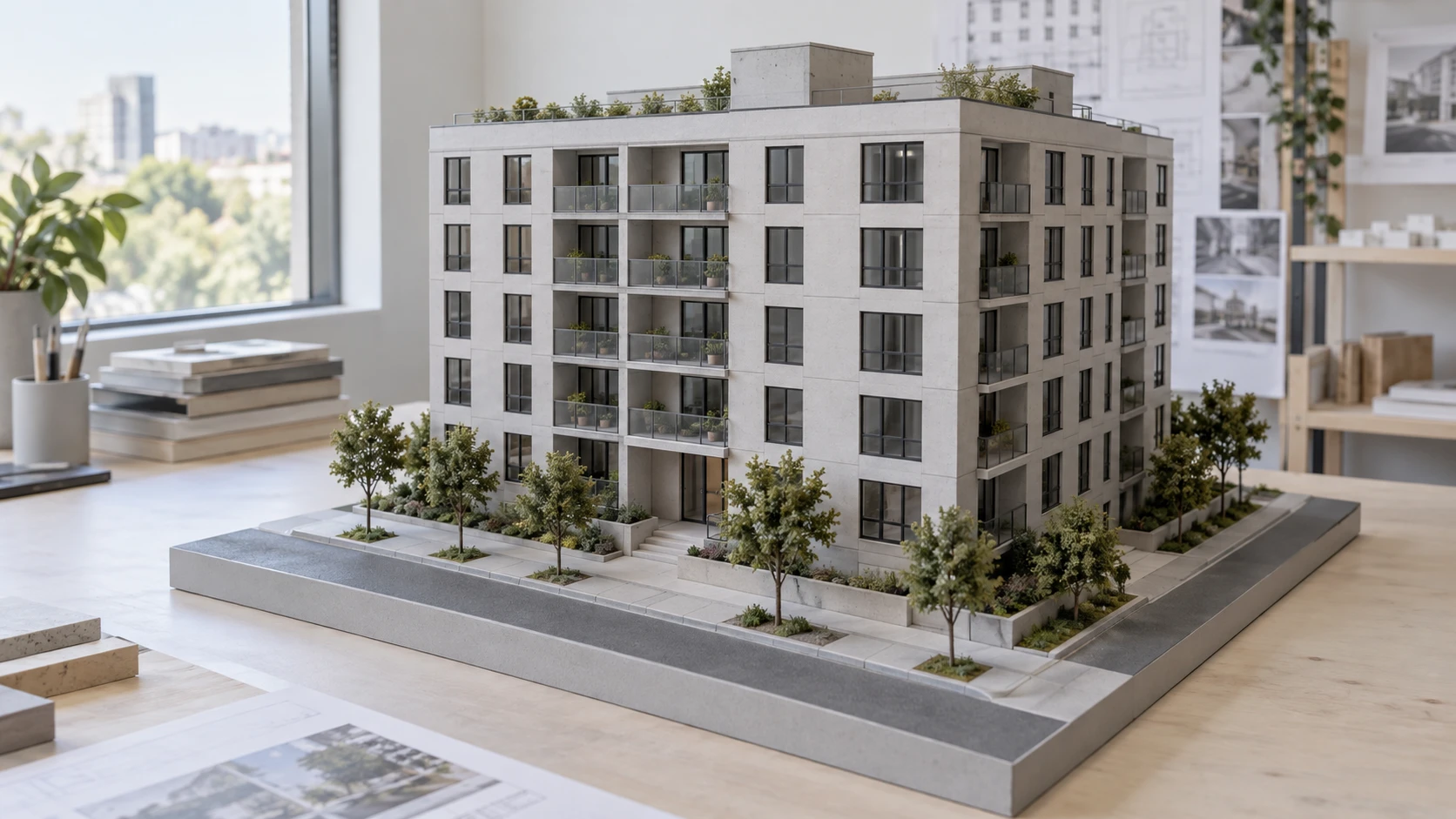
This base video is intentionally uneventful.
That makes the editing process easier to understand.
Make the windows gradually light up from the bottom floor to the top floor.
Change the window light from neutral white to warm amber.
Now make the camera slowly orbit clockwise around the model while maintaining the same distance.
The result develops in clear stages:
Base video → lights turn on → light color changes → camera movement is added
Why it works: Each edit changes only one major thing while explicitly protecting the previous result.
A very useful phrase for this workflow is:
Keep everything else unchanged.
It tells the model that the new instruction should not become an excuse to redesign the whole video.
Which Gemini Omni Prompt Structure Should You Use?
| Task | Input | Prompt Focus |
|---|---|---|
| Image to Video | Image | Action + Sequence + Camera + End State |
| Add Effects to Video | Video | Keep + Add + Timing + Protect |
| Edit Existing Video | Video | Keep Everything Else + Specific Change |
| Motion Reference | Image + Video | Appearance Reference + Motion Reference |
| Multimodal Creation | Images + Video + Audio | Define what each reference controls |
| Conversational Editing | Existing Result | Preserve Previous Result + One New Edit |
| Style Transfer | Video + Style Reference | Preserve Motion + Replace Visual Style |
The important point is simple:
Different tasks need different prompt structures.
There is no single Gemini Omni prompt formula that works equally well for every workflow.
8 Gemini Omni Prompts to Try Yourself
These ideas are intentionally left without finished results.
Copy them, test them, and see how Gemini Omni interprets the instructions.
1. Origami Birds Take Flight
The origami birds resting on the desk begin moving one by one. Each bird slowly unfolds its paper wings, pushes itself upright and takes off from the table. Keep the paper folds, printed patterns and desk objects unchanged. Their movement should still feel slightly stiff and paper-like rather than behaving exactly like real birds. The camera remains fixed as the last bird flies out of frame.
2. Poster Elements Escape the Page
Keep the printed poster attached to the wall. The geometric shapes printed on the poster gradually lift away from the paper surface and become physical paper cutouts floating several centimeters in front of it. Preserve their original colors and shapes. The poster itself remains unchanged. The floating pieces slowly rotate before returning to their exact original positions.
3. Toy Train Through a Miniature Town
4. Building Lights Follow Music
Keep the building and camera completely unchanged. Make different apartment windows turn on and off in sync with the rhythm of the uploaded music. Lower floors respond to slower beats while smaller upper windows react to faster percussion. Use warm natural window light. Do not change the building structure.
5. Turn a Sketch Into Real Motion
6. Add Hand-Drawn Effects to a Bicycle Clip
7. Transfer Animal Motion to a Paper Sculpture
8. Replace One Object, Keep Everything Else
Keep the entire original video unchanged except for the cup on the table. Replace the existing cup with the transparent glass from the reference image. Match the original position, scale, hand interaction, shadows and movement exactly. Do not alter the person, table, lighting, background or camera motion.
Before Writing a Gemini Omni Prompt, Ask One Question
Do not start by asking:
How can I make my prompt longer?
Ask:
Am I generating, editing, or referencing?
If you are generating, explain what should happen.
If you are editing, explain what must stay and what must change.
If you are using references, tell Gemini Omni exactly which asset controls appearance, motion, timing, or style.
And if the current result is already close, do not rebuild everything.
Continue with a focused instruction such as:
Keep everything else the same and change only...
That is often a better way to use Gemini Omni than trying to fit every possible instruction into one enormous prompt.
'%3e%3crect%20y='2.1906'%20width='26'%20height='17.4314'%20rx='1.55981'%20fill='white'/%3e%3c/g%3e%3crect%20x='0.311961'%20y='2.50256'%20width='25.3761'%20height='16.8075'%20rx='1.24784'%20stroke='%2322257C'%20stroke-width='0.623922'/%3e%3c/g%3e%3crect%20x='13.078'%20y='15.5656'%20width='10.8016'%20height='2.49569'%20rx='0.623922'%20fill='%2366B3FF'%20stroke='%2322257C'%20stroke-width='0.623922'/%3e%3crect%20x='-0.311961'%20y='0.311961'%20width='10.8016'%20height='2.49569'%20rx='0.623922'%20transform='matrix(-1%200%200%201%2012.61%2015.2536)'%20fill='%2366B3FF'%20stroke='%2322257C'%20stroke-width='0.623922'/%3e%3crect%20x='10.3093'%20y='13.3231'%20width='4.91339'%20height='6.98013'%20rx='2.45669'%20fill='%2322257C'/%3e%3cpath%20d='M18.9174%200.31543C20.5962%200.268025%2022.1261%200.655527%2023.9487%201.55762C24.0483%201.60695%2024.1137%201.71153%2024.1137%201.8291V16.502C24.1137%2016.7236%2023.8763%2016.891%2023.6499%2016.7979C21.803%2016.0377%2020.2158%2015.6963%2018.4975%2015.7705C16.8915%2015.8399%2015.1907%2016.2732%2013.0776%2017.0332V1.6709C15.4678%200.825877%2017.2746%200.36187%2018.9174%200.31543Z'%20fill='white'%20stroke='%2322257C'%20stroke-width='0.623922'/%3e%3cpath%20d='M15.3008%204.57C16.3536%203.94578%2019.2783%203.20503%2021.8909%203.94608'%20stroke='%2366B3FF'%20stroke-width='0.935883'%20stroke-linecap='round'/%3e%3cpath%20d='M15.3008%207.26054C16.3536%206.63631%2019.2783%205.89557%2021.8909%206.63661'%20stroke='%2366B3FF'%20stroke-width='0.935883'%20stroke-linecap='round'/%3e%3cpath%20d='M15.3008%209.95107C16.3536%209.32684%2019.2783%208.5861%2021.8909%209.32714'%20stroke='%2366B3FF'%20stroke-width='0.935883'%20stroke-linecap='round'/%3e%3cpath%20d='M15.3008%2012.6398C16.3536%2012.0156%2019.2783%2011.2749%2021.8909%2012.0159'%20stroke='%2366B3FF'%20stroke-width='0.935883'%20stroke-linecap='round'/%3e%3cpath%20d='M7.08257%200.31543C5.40384%200.268025%203.87393%200.655527%202.05132%201.55762C1.95165%201.60695%201.88628%201.71153%201.88628%201.8291V16.502C1.88628%2016.7236%202.12373%2016.891%202.35014%2016.7979C4.19702%2016.0377%205.78418%2015.6963%207.50249%2015.7705C9.10852%2015.8399%2010.8093%2016.2732%2012.9224%2017.0332V1.6709C10.5322%200.825877%208.72541%200.36187%207.08257%200.31543Z'%20fill='white'%20stroke='%2322257C'%20stroke-width='0.623922'/%3e%3cpath%20d='M10.6992%204.57C9.64638%203.94578%206.72175%203.20503%204.10907%203.94608'%20stroke='%2366B3FF'%20stroke-width='0.935883'%20stroke-linecap='round'/%3e%3cpath%20d='M10.6992%207.26054C9.64638%206.63631%206.72175%205.89557%204.10907%206.63661'%20stroke='%2366B3FF'%20stroke-width='0.935883'%20stroke-linecap='round'/%3e%3cpath%20d='M10.6992%209.95107C9.64638%209.32684%206.72175%208.5861%204.10907%209.32714'%20stroke='%2366B3FF'%20stroke-width='0.935883'%20stroke-linecap='round'/%3e%3cpath%20d='M10.6992%2012.6398C9.64638%2012.0156%206.72175%2011.2749%204.10907%2012.0159'%20stroke='%2366B3FF'%20stroke-width='0.935883'%20stroke-linecap='round'/%3e%3c/g%3e%3cdefs%3e%3cfilter%20x='0'%20y='2.1906'%20width='26'%20height='17.4314'%20filterUnits='userSpaceOnUse'%20color-interpolation-filters='sRGB'%3e%3cfeFlood%20flood-opacity='0'%20result='BackgroundImageFix'/%3e%3cfeBlend%20mode='normal'%20in='SourceGraphic'%20in2='BackgroundImageFix'%20result='shape'/%3e%3cfeColorMatrix%20in='SourceAlpha'%20type='matrix'%20values='0%200%200%200%200%200%200%200%200%200%200%200%200%200%200%200%200%200%20127%200'%20result='hardAlpha'/%3e%3cfeOffset%20dy='-1.24784'/%3e%3cfeComposite%20in2='hardAlpha'%20operator='arithmetic'%20k2='-1'%20k3='1'/%3e%3cfeColorMatrix%20type='matrix'%20values='0%200%200%200%200.572549%200%200%200%200%200.768627%200%200%200%200%200.976471%200%200%200%201%200'/%3e%3cfeBlend%20mode='normal'%20in2='shape'%20result='effect1_innerShadow_0_4'/%3e%3c/filter%3e%3c/defs%3e%3c/svg%3e)