
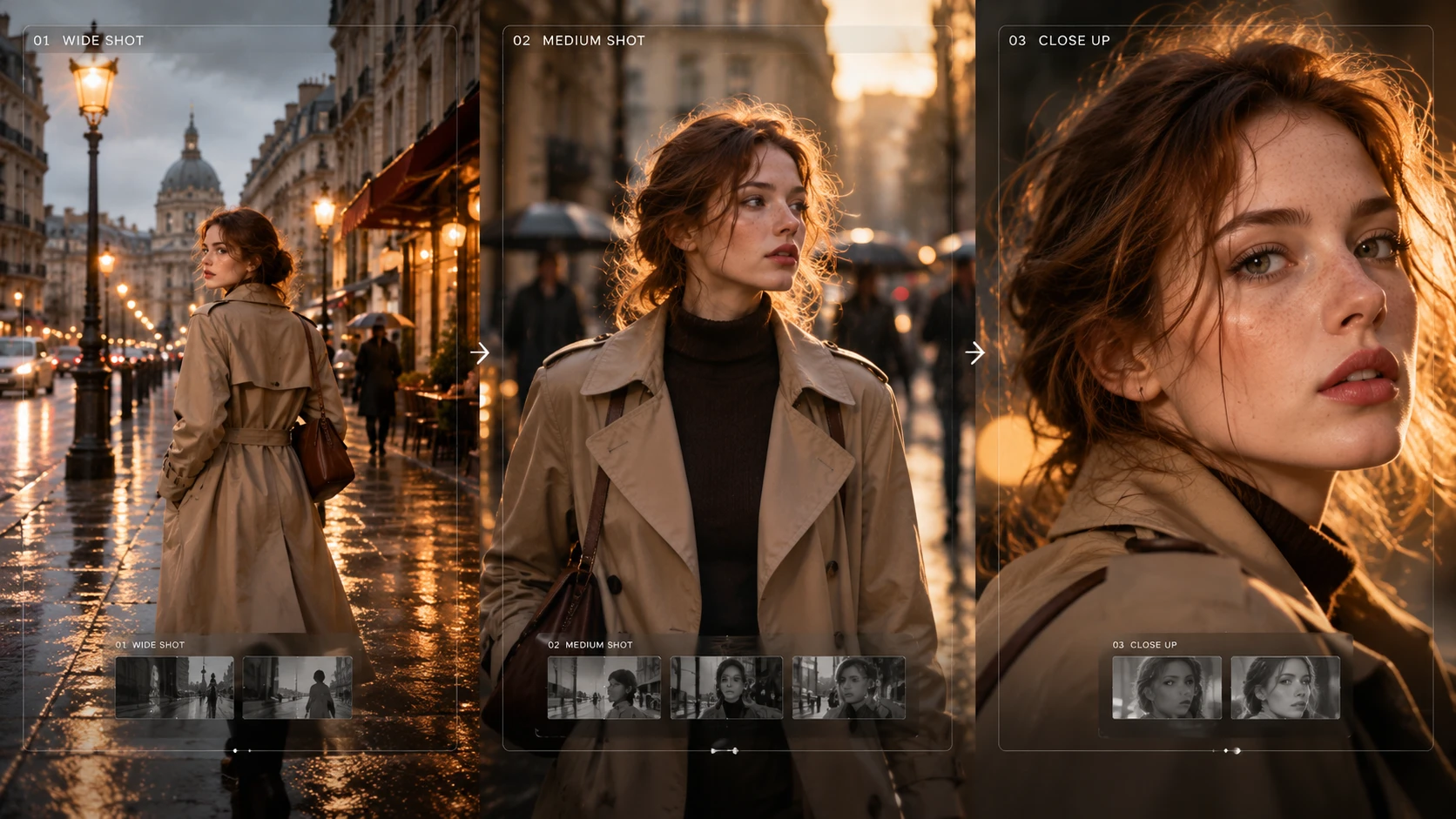
Our long-form video feature on Movmix has been live for a while now. Seeing that many creators are still unsure how to get the most out of it, we are rolling out a dedicated tutorial series to guide your workflow.
Generating a multi-shot story with AI often feels like a gamble where faces shift and clothes change every scene. If you want continuous narratives without burning through credits, mastering consistent characters in ai video is essential.
A production-ready workflow anchors visual assets upfront, locks framing before rendering, and isolates flawed takes. Here is how to achieve seamless consistency without complex local setups.
The Root Cause: Why AI Characters Drift
Standard text-to-video tools treat each prompt as an isolated roll of noise.
To maintain continuity, your workflow needs three safeguards:
- Visual Asset Anchoring: Supplying fixed identity benchmarks so the model locks face and wardrobe parameters.
- Pre-Rendered Storyboards: Previewing angles, blocking, and pacing before rendering video.
- Targeted Shot Repair: Re-rendering individual flawed cuts without restarting the entire timeline.

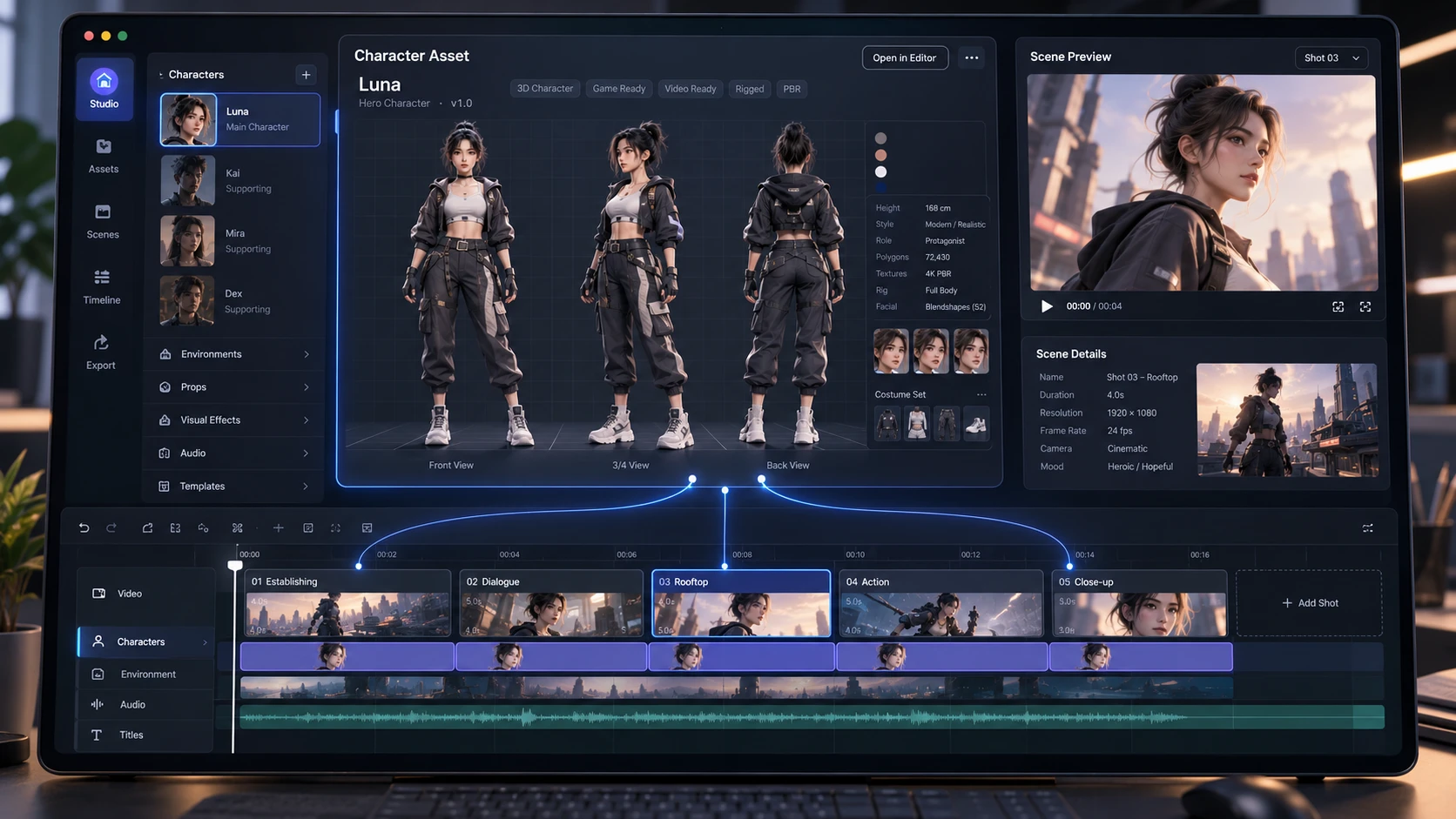
Step 1: Lock Identity with Character Turnaround Sheets (Three-View Sheets)
Never start with generic text prompts alone; anchor your protagonist using image references.
- Upload a 3-View Sheet: Provide a character turnaround sheet showing front, profile, and back/three-quarter angles to define all proportions clearly.
- Define Wardrobe Tokens: Specify distinct textures and accessories (e.g., "textured charcoal wool overcoat, silver mechanical watch").
- Asset Persistence: Pinning this visual sheet to your workspace forces all subsequent generation passes to inherit the same facial structure and styling.
Step 2: Plan Continuity with an AI Storyboard Generator
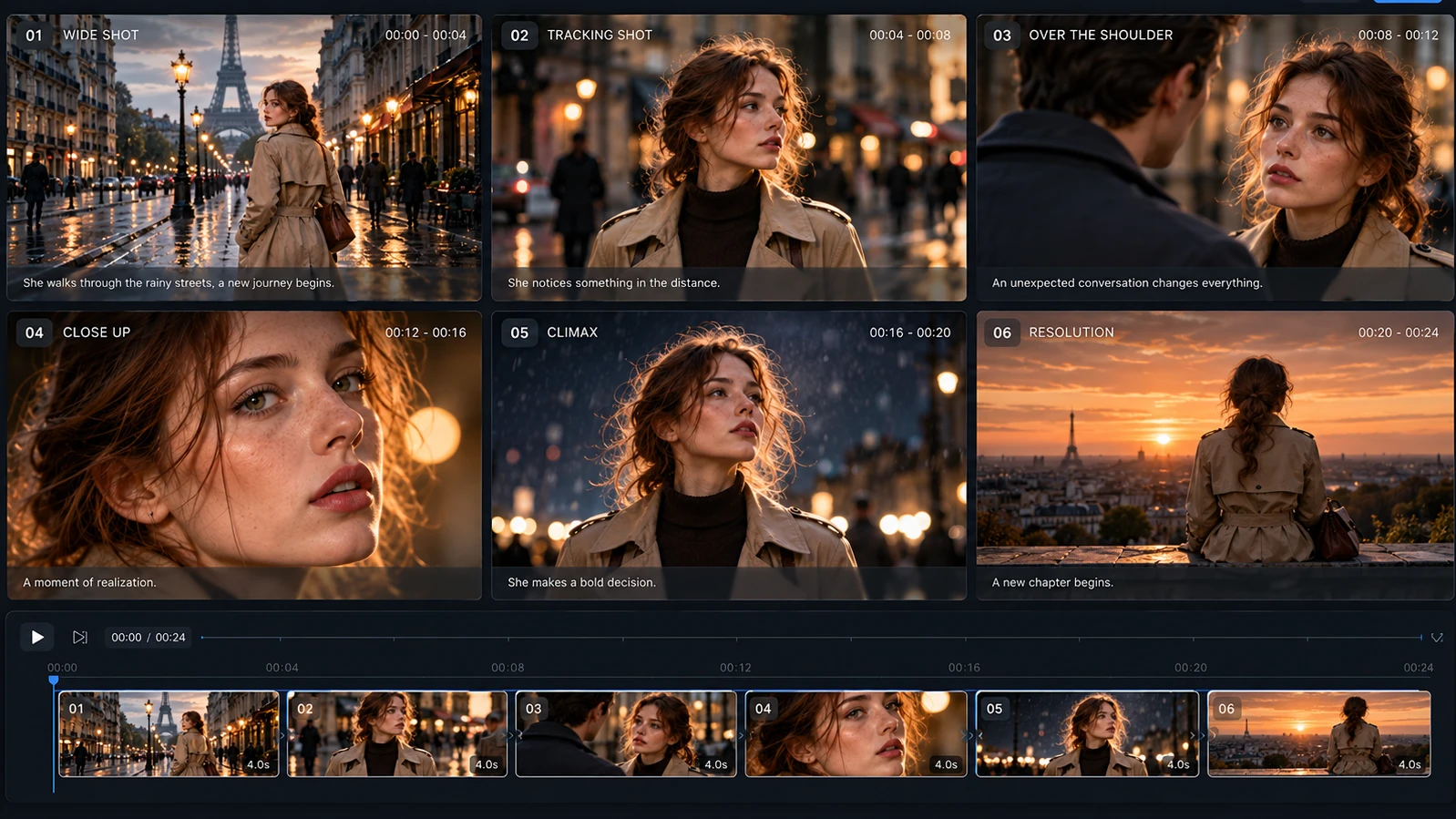
Avoid generating whole clips blindly. Map your narrative structure first using an ai storyboard generator.
- Script Breakdown: Divide your script into 4–6 beats (wide establishing, tracking, dialogue, climax).
- Camera Logic: Lock focal lengths and camera movements during storyboard generation to preserve background and spatial coherence.
- Visual Audit: Compare generated frames side-by-side to verify character fidelity and lighting before rendering full motion.
Step 3: Run the AI Story to Video Pipeline
Once your storyboard is approved, initiate the integrated ai story to video engine.
- Keep individual cuts between 3 and 5 seconds to reduce motion warping and maintain clean pacing.
- Align camera velocity with narrative tension: slow pans for dialogue, rapid motion for action.
- Allow the system to generate matching ambient audio and dialog rhythms alongside the visuals.
Step 4: Fix Flaws via Partial Regeneration
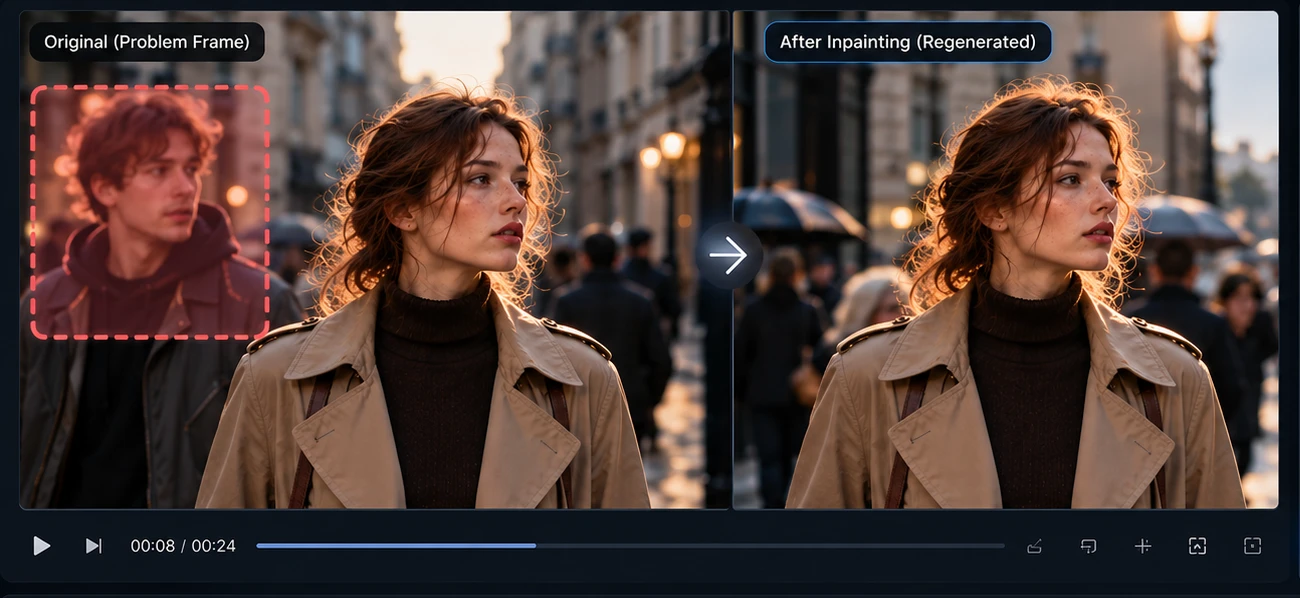
If a hand distorts or an object shifts, do not scrap the whole project. When you need to regenerate flawed scene in ai video sequences, isolate and re-render only the affected cut:
- Select the flawed panel on the timeline.
- Adjust the prompt (e.g., change "running frantically" to "walking steadily" to reduce motion blur).
- Re-render only that clip. It slots back into the timeline with audio and neighboring shots preserved.
Narrative Continuity Checklist
- Character 3-view sheet uploaded before starting.
- Lighting and wardrobe descriptors harmonized across prompts.
- Storyboard frames verified prior to video rendering.
- Flawed clips fixed via localized re-generation rather than total rerolls.
You do not need heavy local pipelines to produce consistent video narratives. By anchoring turnaround assets and using storyboard controls, keeping consistent characters in ai video is straightforward and predictable.
Ready to build your next narrative piece? Upload your character turnaround sheet and launch the storyboard studio on movmix.ai.
'%3e%3crect%20y='2.1906'%20width='26'%20height='17.4314'%20rx='1.55981'%20fill='white'/%3e%3c/g%3e%3crect%20x='0.311961'%20y='2.50256'%20width='25.3761'%20height='16.8075'%20rx='1.24784'%20stroke='%2322257C'%20stroke-width='0.623922'/%3e%3c/g%3e%3crect%20x='13.078'%20y='15.5656'%20width='10.8016'%20height='2.49569'%20rx='0.623922'%20fill='%2366B3FF'%20stroke='%2322257C'%20stroke-width='0.623922'/%3e%3crect%20x='-0.311961'%20y='0.311961'%20width='10.8016'%20height='2.49569'%20rx='0.623922'%20transform='matrix(-1%200%200%201%2012.61%2015.2536)'%20fill='%2366B3FF'%20stroke='%2322257C'%20stroke-width='0.623922'/%3e%3crect%20x='10.3093'%20y='13.3231'%20width='4.91339'%20height='6.98013'%20rx='2.45669'%20fill='%2322257C'/%3e%3cpath%20d='M18.9174%200.31543C20.5962%200.268025%2022.1261%200.655527%2023.9487%201.55762C24.0483%201.60695%2024.1137%201.71153%2024.1137%201.8291V16.502C24.1137%2016.7236%2023.8763%2016.891%2023.6499%2016.7979C21.803%2016.0377%2020.2158%2015.6963%2018.4975%2015.7705C16.8915%2015.8399%2015.1907%2016.2732%2013.0776%2017.0332V1.6709C15.4678%200.825877%2017.2746%200.36187%2018.9174%200.31543Z'%20fill='white'%20stroke='%2322257C'%20stroke-width='0.623922'/%3e%3cpath%20d='M15.3008%204.57C16.3536%203.94578%2019.2783%203.20503%2021.8909%203.94608'%20stroke='%2366B3FF'%20stroke-width='0.935883'%20stroke-linecap='round'/%3e%3cpath%20d='M15.3008%207.26054C16.3536%206.63631%2019.2783%205.89557%2021.8909%206.63661'%20stroke='%2366B3FF'%20stroke-width='0.935883'%20stroke-linecap='round'/%3e%3cpath%20d='M15.3008%209.95107C16.3536%209.32684%2019.2783%208.5861%2021.8909%209.32714'%20stroke='%2366B3FF'%20stroke-width='0.935883'%20stroke-linecap='round'/%3e%3cpath%20d='M15.3008%2012.6398C16.3536%2012.0156%2019.2783%2011.2749%2021.8909%2012.0159'%20stroke='%2366B3FF'%20stroke-width='0.935883'%20stroke-linecap='round'/%3e%3cpath%20d='M7.08257%200.31543C5.40384%200.268025%203.87393%200.655527%202.05132%201.55762C1.95165%201.60695%201.88628%201.71153%201.88628%201.8291V16.502C1.88628%2016.7236%202.12373%2016.891%202.35014%2016.7979C4.19702%2016.0377%205.78418%2015.6963%207.50249%2015.7705C9.10852%2015.8399%2010.8093%2016.2732%2012.9224%2017.0332V1.6709C10.5322%200.825877%208.72541%200.36187%207.08257%200.31543Z'%20fill='white'%20stroke='%2322257C'%20stroke-width='0.623922'/%3e%3cpath%20d='M10.6992%204.57C9.64638%203.94578%206.72175%203.20503%204.10907%203.94608'%20stroke='%2366B3FF'%20stroke-width='0.935883'%20stroke-linecap='round'/%3e%3cpath%20d='M10.6992%207.26054C9.64638%206.63631%206.72175%205.89557%204.10907%206.63661'%20stroke='%2366B3FF'%20stroke-width='0.935883'%20stroke-linecap='round'/%3e%3cpath%20d='M10.6992%209.95107C9.64638%209.32684%206.72175%208.5861%204.10907%209.32714'%20stroke='%2366B3FF'%20stroke-width='0.935883'%20stroke-linecap='round'/%3e%3cpath%20d='M10.6992%2012.6398C9.64638%2012.0156%206.72175%2011.2749%204.10907%2012.0159'%20stroke='%2366B3FF'%20stroke-width='0.935883'%20stroke-linecap='round'/%3e%3c/g%3e%3cdefs%3e%3cfilter%20x='0'%20y='2.1906'%20width='26'%20height='17.4314'%20filterUnits='userSpaceOnUse'%20color-interpolation-filters='sRGB'%3e%3cfeFlood%20flood-opacity='0'%20result='BackgroundImageFix'/%3e%3cfeBlend%20mode='normal'%20in='SourceGraphic'%20in2='BackgroundImageFix'%20result='shape'/%3e%3cfeColorMatrix%20in='SourceAlpha'%20type='matrix'%20values='0%200%200%200%200%200%200%200%200%200%200%200%200%200%200%200%200%200%20127%200'%20result='hardAlpha'/%3e%3cfeOffset%20dy='-1.24784'/%3e%3cfeComposite%20in2='hardAlpha'%20operator='arithmetic'%20k2='-1'%20k3='1'/%3e%3cfeColorMatrix%20type='matrix'%20values='0%200%200%200%200.572549%200%200%200%200%200.768627%200%200%200%200%200.976471%200%200%200%201%200'/%3e%3cfeBlend%20mode='normal'%20in2='shape'%20result='effect1_innerShadow_0_4'/%3e%3c/filter%3e%3c/defs%3e%3c/svg%3e)