
Have a birthday photo and wish it could actually move? The easiest place to start is MiniMax H3 Image to Video.
MiniMax H3 can turn a still image into a video, or use another video as a motion reference. In this tutorial, we will keep things simple and focus on two practical workflows: create your own birthday video from one image, or copy the movement of a birthday video you already like while keeping your own character.
Method 1: Create a Birthday Video from One Photo
This method is best when you already know what you want to happen.
For example:
Look at the cake → make a wish → blow out the candles → confetti falls → smile.
Step 1: Start With the Right Birthday Image
Your first frame should show the moment before the main action happens.
If the video is supposed to show someone blowing out candles, the candles should still be lit in the image. The face should be clear, the birthday cake should be fully visible, and the background should not be too busy.
Here is a ready-to-use image prompt:
| Image Prompt | |
|---|---|
| Photorealistic birthday scene in a bright modern living room, a young woman sitting naturally behind a decorated birthday cake on a dining table, all birthday candles still lit with small steady flames, she looks gently toward the cake with a relaxed happy expression, both hands resting naturally near the table, wrapped gifts and a few simple paper decorations in the background, warm natural indoor lighting, realistic skin texture, clean composition, medium shot, face clearly visible, cake fully visible, 16:9, no text, no logo, no watermark. | 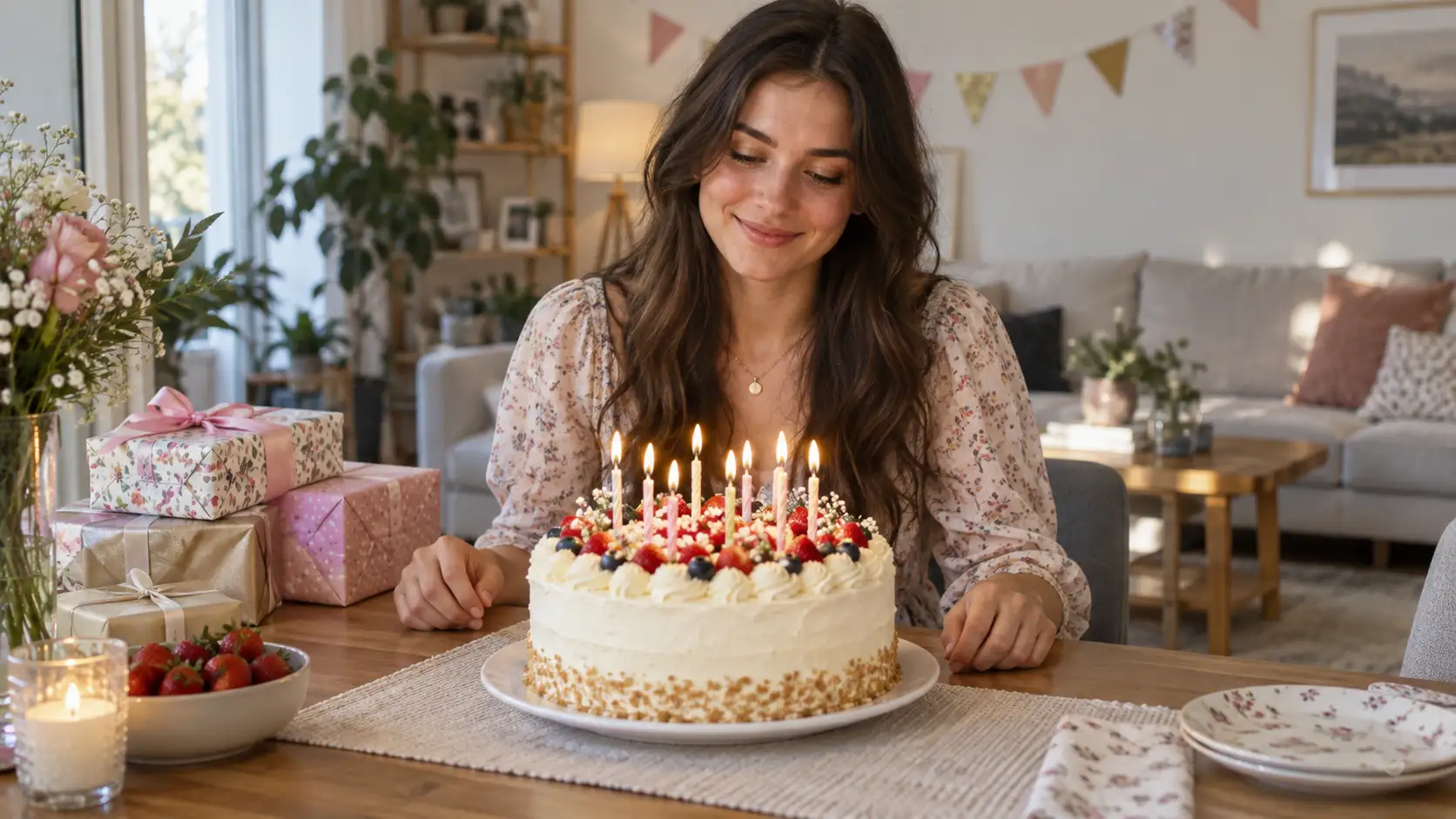 |
Before moving on, check three things: the face is clear, the cake looks correct, and the candles are still lit.
Step 2: Upload the Image and Describe What Happens Next
Upload the birthday image to MiniMax H3. Now tell the model what should happen in order.
Avoid prompts like:
Make a nice birthday video.
That gives the model very little direction.
A better action sequence is:
make a wish → blow out the candles → confetti falls → smile and clap
Step 3: Keep the Camera Simple
One camera move is enough for a short birthday video.
A slow subtle push-in works well because it adds movement without distracting from the subject.
You do not need a zoom, orbit, pan, tracking shot, and dramatic camera shake all at once. It is a birthday party, not a camera operator competition.
Step 4: Use This Image-to-Video Prompt
Create a warm and natural birthday celebration video from the uploaded image. Keep the woman's face, hairstyle, outfit, body proportions, birthday cake, candle arrangement, table, gifts, and room layout visually consistent throughout the video. She first looks at the birthday cake with a gentle smile, then briefly closes her eyes as if making a wish. She slowly opens her eyes, leans slightly forward, and softly blows toward the candles. The candle flames flicker naturally for a moment and then go out. Immediately after the candles are extinguished, a small amount of colorful paper confetti falls gently from above. She lifts her head, smiles happily, and gives one small celebratory clap. Use one slow subtle camera push-in throughout the scene. Add soft indoor room ambience, a gentle blowing sound when she blows toward the candles, and light cheerful celebration sounds after the candles go out. Keep all movement natural and easy to read. Avoid face changes, hairstyle changes, extra fingers, distorted hands, changing cake design, missing candles, new objects, sudden camera movement, background changes, or excessive motion.
Why does this prompt work? Because it tells MiniMax H3 exactly what matters: who appears, what happens first, what happens next, how the camera moves, what the audio should do, and what must stay unchanged.
That is usually more useful than filling a prompt with words like beautiful, amazing, or cinematic.
Method 2: Copy a Birthday Video, but Use Your Own Character
Now imagine a different situation.
You already found a birthday video you love. The candle-blowing action is good, the timing feels natural, and the camera movement is exactly what you want.
You do not want to invent a new sequence. You simply want:
the same type of movement, but with your own character.
That is where Reference to Video becomes useful.
Step 1: Prepare Your Character Image
Choose a clear image of the person you want in the final result.
Ideally, the face, hairstyle, clothing, and body shape should be easy to see.
Think of this image as telling the model:
“This is who should appear in my video.”
Step 2: Prepare Your Reference Video
Now upload the birthday video you want to imitate.
The reference video should mainly guide:
body movement, action timing, camera rhythm, and overall motion flow.
The easiest way to understand this workflow is:
Your image = who you are
Reference video = how you move
Step 3: Do Not Let the Two References Get Mixed Up
A common beginner mistake is to upload the image and video and simply write:
Make mine like this.
That is too vague.
The model may start copying the reference person's face, clothing, or environment.
Instead, make the roles clear:
Use Image A for appearance. Use Video B only for movement and timing.
That one sentence explains the workflow surprisingly well.
Step 4: Use Your Existing Reference Example
For this section, use the birthday reference-video example you already prepared.
The workflow shown to readers should be very simple:
1. Upload your own character image.
2. Upload the birthday reference video.
3. Tell MiniMax H3 that the image controls identity and the video controls movement.
4. Generate the new version with your character performing the reference motion.
You do not need to over-explain it.
The goal is simply:
keep the action, replace the character.
If the result starts looking too much like the person in the reference video, strengthen the identity instruction. If the motion does not follow the reference closely enough, make it clear that the reference video should guide movement and timing.

Which Method Should You Use?
| What You Have | Best Choice |
|---|---|
| One birthday photo and your own idea for the motion | Image to Video |
| A birthday video you already like and want to imitate | Reference to Video |
The simplest way to remember it is:
Want to direct the video yourself? Use Image to Video.
Want to copy an existing motion? Use Reference to Video.
Common MiniMax H3 Problems
The Face Changes
Add a stronger identity constraint such as:
Keep the same face, hairstyle, outfit, and body proportions throughout the video.
When using a reference video, also make it clear that the person from the video should not replace your subject.
The Cake or Candles Change
Add:
Keep the cake design and candle arrangement consistent throughout the video.
Important objects should be protected just like the character.
Too Much Happens at Once
Reduce the number of actions.
A simple sequence such as:
make a wish → blow out candles → smile
is usually easier to control than trying to combine dancing, hugging, turning around, confetti, dramatic camera moves, and ten other things in one clip.
The Reference Video Takes Over the Character
Go back to the basic rule:
Your image controls identity. The reference video controls motion.
If you keep that distinction clear, Reference to Video becomes much easier to use.
Before You Generate
Do a quick check before clicking Generate: Is the image showing the moment before the action? Are the actions written in order? Is the camera movement simple? Are the face and important objects protected? If you are using a reference video, did you clearly explain what the video should control?
If those points are clear, you already have a solid MiniMax H3 workflow.
If you already have a birthday video you want to recreate with your own character, upload your image and reference clip to MiniMax H3 Reference to Video and let the reference handle the movement while your image keeps the identity.
'%3e%3crect%20y='2.1906'%20width='26'%20height='17.4314'%20rx='1.55981'%20fill='white'/%3e%3c/g%3e%3crect%20x='0.311961'%20y='2.50256'%20width='25.3761'%20height='16.8075'%20rx='1.24784'%20stroke='%2322257C'%20stroke-width='0.623922'/%3e%3c/g%3e%3crect%20x='13.078'%20y='15.5656'%20width='10.8016'%20height='2.49569'%20rx='0.623922'%20fill='%2366B3FF'%20stroke='%2322257C'%20stroke-width='0.623922'/%3e%3crect%20x='-0.311961'%20y='0.311961'%20width='10.8016'%20height='2.49569'%20rx='0.623922'%20transform='matrix(-1%200%200%201%2012.61%2015.2536)'%20fill='%2366B3FF'%20stroke='%2322257C'%20stroke-width='0.623922'/%3e%3crect%20x='10.3093'%20y='13.3231'%20width='4.91339'%20height='6.98013'%20rx='2.45669'%20fill='%2322257C'/%3e%3cpath%20d='M18.9174%200.31543C20.5962%200.268025%2022.1261%200.655527%2023.9487%201.55762C24.0483%201.60695%2024.1137%201.71153%2024.1137%201.8291V16.502C24.1137%2016.7236%2023.8763%2016.891%2023.6499%2016.7979C21.803%2016.0377%2020.2158%2015.6963%2018.4975%2015.7705C16.8915%2015.8399%2015.1907%2016.2732%2013.0776%2017.0332V1.6709C15.4678%200.825877%2017.2746%200.36187%2018.9174%200.31543Z'%20fill='white'%20stroke='%2322257C'%20stroke-width='0.623922'/%3e%3cpath%20d='M15.3008%204.57C16.3536%203.94578%2019.2783%203.20503%2021.8909%203.94608'%20stroke='%2366B3FF'%20stroke-width='0.935883'%20stroke-linecap='round'/%3e%3cpath%20d='M15.3008%207.26054C16.3536%206.63631%2019.2783%205.89557%2021.8909%206.63661'%20stroke='%2366B3FF'%20stroke-width='0.935883'%20stroke-linecap='round'/%3e%3cpath%20d='M15.3008%209.95107C16.3536%209.32684%2019.2783%208.5861%2021.8909%209.32714'%20stroke='%2366B3FF'%20stroke-width='0.935883'%20stroke-linecap='round'/%3e%3cpath%20d='M15.3008%2012.6398C16.3536%2012.0156%2019.2783%2011.2749%2021.8909%2012.0159'%20stroke='%2366B3FF'%20stroke-width='0.935883'%20stroke-linecap='round'/%3e%3cpath%20d='M7.08257%200.31543C5.40384%200.268025%203.87393%200.655527%202.05132%201.55762C1.95165%201.60695%201.88628%201.71153%201.88628%201.8291V16.502C1.88628%2016.7236%202.12373%2016.891%202.35014%2016.7979C4.19702%2016.0377%205.78418%2015.6963%207.50249%2015.7705C9.10852%2015.8399%2010.8093%2016.2732%2012.9224%2017.0332V1.6709C10.5322%200.825877%208.72541%200.36187%207.08257%200.31543Z'%20fill='white'%20stroke='%2322257C'%20stroke-width='0.623922'/%3e%3cpath%20d='M10.6992%204.57C9.64638%203.94578%206.72175%203.20503%204.10907%203.94608'%20stroke='%2366B3FF'%20stroke-width='0.935883'%20stroke-linecap='round'/%3e%3cpath%20d='M10.6992%207.26054C9.64638%206.63631%206.72175%205.89557%204.10907%206.63661'%20stroke='%2366B3FF'%20stroke-width='0.935883'%20stroke-linecap='round'/%3e%3cpath%20d='M10.6992%209.95107C9.64638%209.32684%206.72175%208.5861%204.10907%209.32714'%20stroke='%2366B3FF'%20stroke-width='0.935883'%20stroke-linecap='round'/%3e%3cpath%20d='M10.6992%2012.6398C9.64638%2012.0156%206.72175%2011.2749%204.10907%2012.0159'%20stroke='%2366B3FF'%20stroke-width='0.935883'%20stroke-linecap='round'/%3e%3c/g%3e%3cdefs%3e%3cfilter%20x='0'%20y='2.1906'%20width='26'%20height='17.4314'%20filterUnits='userSpaceOnUse'%20color-interpolation-filters='sRGB'%3e%3cfeFlood%20flood-opacity='0'%20result='BackgroundImageFix'/%3e%3cfeBlend%20mode='normal'%20in='SourceGraphic'%20in2='BackgroundImageFix'%20result='shape'/%3e%3cfeColorMatrix%20in='SourceAlpha'%20type='matrix'%20values='0%200%200%200%200%200%200%200%200%200%200%200%200%200%200%200%200%200%20127%200'%20result='hardAlpha'/%3e%3cfeOffset%20dy='-1.24784'/%3e%3cfeComposite%20in2='hardAlpha'%20operator='arithmetic'%20k2='-1'%20k3='1'/%3e%3cfeColorMatrix%20type='matrix'%20values='0%200%200%200%200.572549%200%200%200%200%200.768627%200%200%200%200%200.976471%200%200%200%201%200'/%3e%3cfeBlend%20mode='normal'%20in2='shape'%20result='effect1_innerShadow_0_4'/%3e%3c/filter%3e%3c/defs%3e%3c/svg%3e)